
Workflow recipes
Adapt example workflows for recurring tasks.
Available on Pro, Growth and Enterprise
These examples show how to build a webhook import, a LinkedIn conversation import, a meeting digest, a transcript import and an outbound sync. Build each one in Settings → Workflows by following Building workflows. Workflows is the reference for each trigger and step they use.
Each pattern also works as an automation: paste the recipe’s prompt into chat and the agent builds it.
Stripe → AI → Lightfield records
Section titled “Stripe → AI → Lightfield records”Pattern: Webhook in → AI interprets → record writes
Stripe sends dozens of event types with different schemas. A customer.subscription.created payload looks nothing like an invoice.payment_succeeded payload. Instead of branching on each event type, this workflow hands the payload to a single agent step.
The workflow
Section titled “The workflow”Trigger: WebhookStep 1: Agent requestStep 2: LogTrigger: Webhook
Configure Stripe to POST webhook events to your Lightfield webhook URL. The raw JSON payload becomes the trigger output.
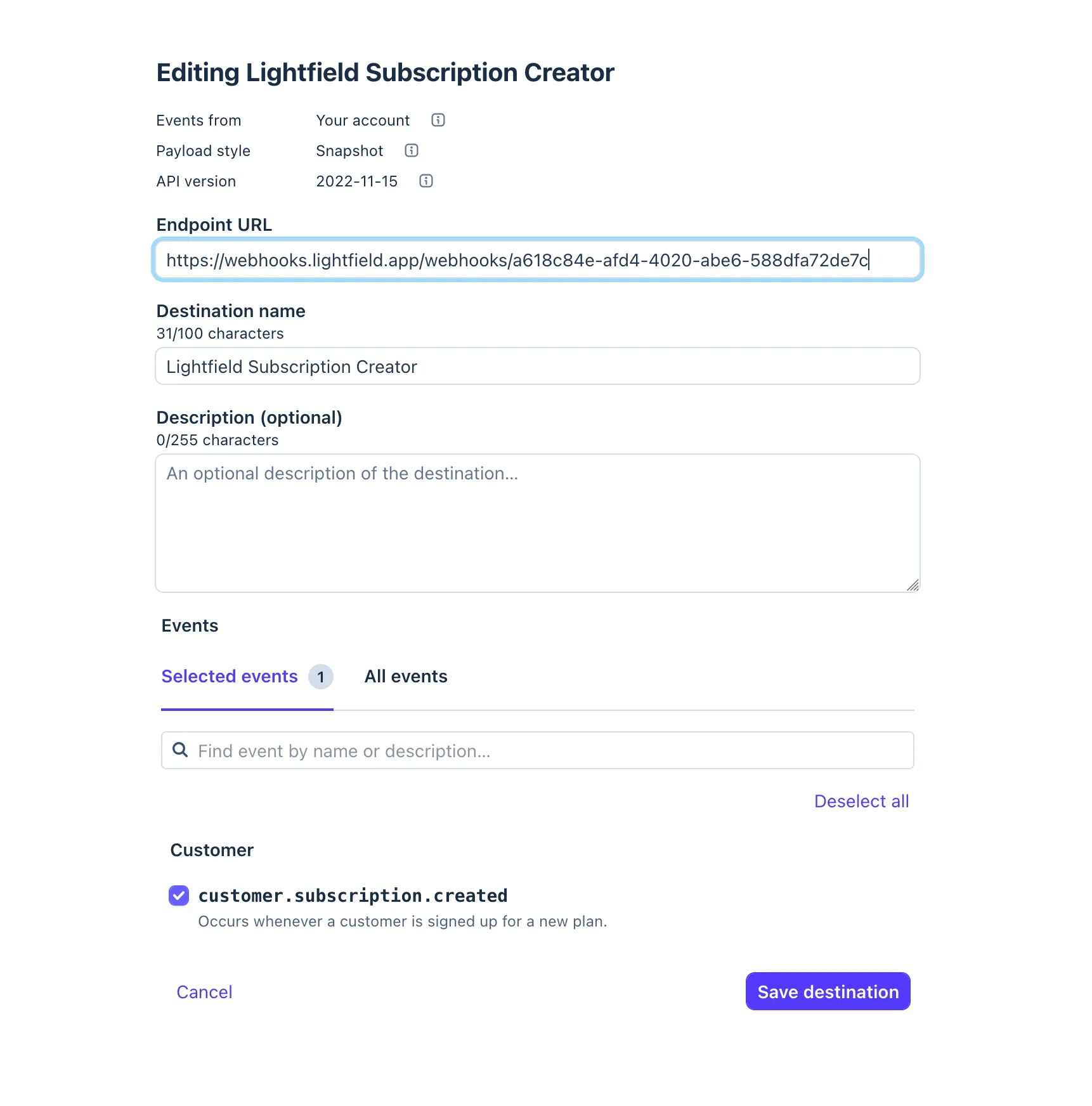
Step 1: Agent request
Prompt the agent to interpret the Stripe event and take appropriate actions:
You are receiving a Stripe webhook event. Based on the event type and payload:
1. If this is a customer-related event, find or create a Contact using the   customer email. Set the contact source to "Stripe".2. If this is a subscription or payment event, find or create an Account   using the customer's company name (from metadata or email domain).3. If this involves revenue (payment, subscription, invoice), create or   update an Opportunity with the amount and status mapped from the   Stripe event status.
Stripe payload:{{trigger}}
Turn on Create records, tasks and notes and Update records and tasks. Before activating, define how Stripe customer and subscription IDs map to your records, how statuses map to opportunity stages, and what should happen when the same event arrives twice. Test missing company names and customers with multiple subscriptions. Ask the agent to show the proposed matches before approving changes.
Step 2: Log
Processed Stripe event {{trigger.type}} for {{trigger.data.object.customer}}Kondo → LinkedIn DM sync
Section titled “Kondo → LinkedIn DM sync”Pattern: Webhook in → AI interprets → contact enrichment
Kondo captures LinkedIn DM conversations and can forward them via webhook. This workflow ingests those conversations and attaches them as context to the right contact records in Lightfield.
The workflow
Section titled “The workflow”Trigger: WebhookStep 1: Agent requestTrigger: Webhook
Configure Kondo to POST LinkedIn DM data to your Lightfield webhook URL. The payload includes the conversation participants, message content, and metadata.
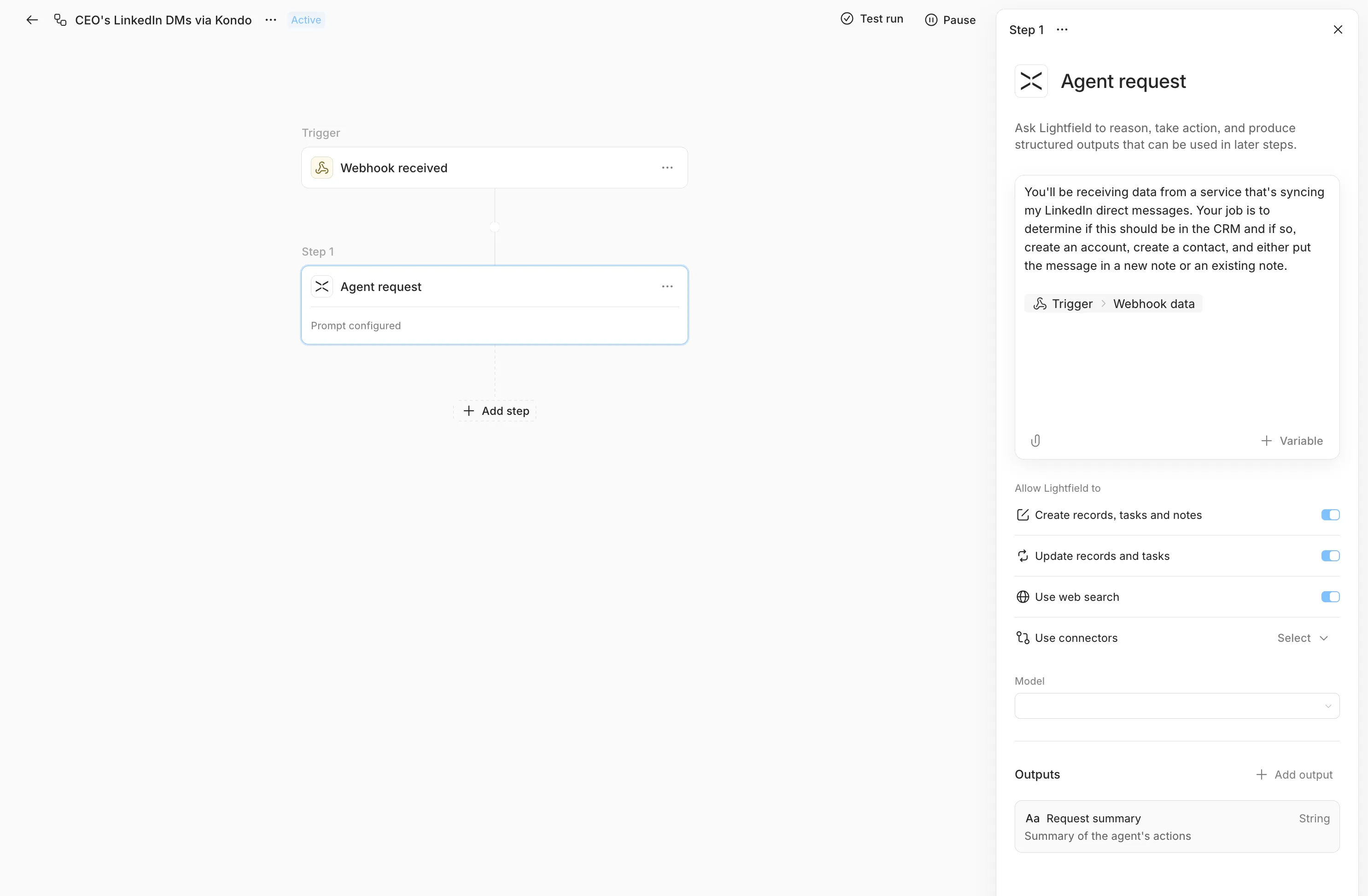
Step 1: Agent request
You are receiving LinkedIn DM conversation data from Kondo. For eachconversation:
1. Find the Contact in Lightfield by matching the LinkedIn profile name   or email. If no match exists, create a new Contact with the available   information (name, LinkedIn URL, company if available).2. Create a Note on the Contact with the conversation summary.   Title: "LinkedIn DM - {{date}}"   Include key discussion points, any mentioned next steps, and the   conversation sentiment.3. If the conversation mentions a deal, product interest, or buying signal,   create or update an Opportunity linked to the Contact's Account.
Kondo payload:{{trigger}}
Turn on Create records, tasks and notes and Update records and tasks. The agent fuzzy-matches contact names against your existing records, including LinkedIn names that don’t exactly match the Lightfield record, and pulls buying intent and next steps out of the conversation text.
Daily Granola meeting digest
Section titled “Daily Granola meeting digest”Pattern: Scheduled trigger → AI with MCP tools → record enrichment
Granola records and transcribes meetings. This workflow runs daily, pulls recent meeting notes through Granola’s MCP server, and creates tasks, notes, and opportunity updates in Lightfield based on what was discussed.
The workflow
Section titled “The workflow”Trigger: Scheduled (Daily, 9:00 AM)Step 1: Agent request (with Granola MCP)Trigger: Scheduled
Set to daily, 9:00 AM in your team’s timezone. The workflow fires once per day and hands off to the AI agent.
Step 1: Agent request (with Granola MCP access)
Pull yesterday's meeting notes from Granola. For each meeting:
1. Identify the attendees and match them to Contacts in Lightfield.2. Find the relevant Account and Opportunity for the meeting context.3. Create a Note on the Account summarizing the key discussion points,   decisions made, and any objections or concerns raised.4. Create Tasks for any action items mentioned in the meeting, assigned   to the appropriate team member, with due dates if mentioned.5. If the meeting revealed a change in deal status, confidence, or   timeline, update the Opportunity fields accordingly.
Focus on extracting actionable information, not transcription summaries.
The agent uses Granola’s MCP server to fetch meeting data, then uses Lightfield’s built-in tools to create and update records. No HTTP step is needed.
Add Granola transcripts to meetings
Section titled “Add Granola transcripts to meetings”Use the built-in Granola integration when you have Granola API access. It attaches transcripts to matching meetings without a workflow. For one transcript, upload the transcript text or ask the agent to attach it. For questions about your notes without importing them, use the Granola connector.
If you need a recurring import through a connector, ask an admin to build an automation and check that the connector can retrieve the transcript text you need. For example:
Each morning, look for Granola transcripts from the previous day. Match them to existing Lightfield meetings. Skip meetings that already have a transcript and skip uncertain matches. Add only transcript text. If Granola has notes but no transcript, report that separately. Tell me which meetings you updated and which need my help.
Test on one meeting before activating the process. Confirm that the correct transcript is attached to the correct meeting and that people who can see the meeting should have access to its contents. A summary is not a verbatim transcript; keep it as a note instead of uploading it as a transcript.
For an existing workflow, use an Agent request step with the same instructions and your Granola connector enabled. See Connectors for connection access and Transcripts for the supported ways to attach text.
Record created → external system sync
Section titled “Record created → external system sync”Pattern: Object lifecycle trigger → HTTP request out
When a new opportunity is created in Lightfield, push it to an external system: your ERP, a Slack channel, a data warehouse, an internal dashboard. This is the outbound counterpart to the inbound webhook recipes above.
The workflow
Section titled “The workflow”Trigger: Object lifecycle (Opportunity created)Step 1: HTTP requestTrigger: Object lifecycle (create)
Set the entity type to Opportunity and the event to create. No field watching needed. This fires on every new opportunity.
Step 1: HTTP request
POST the opportunity data to your external system:
URL: https://your-system.example.com/api/opportunities
Headers:
Authorization: Bearer YOUR_API_TOKENContent-Type: application/jsonBody (JSON):
{ "lightfield_id": "{{trigger.opportunity.id}}", "name": "{{trigger.opportunity.name}}", "stage": "{{trigger.opportunity.stage}}", "amount": "{{trigger.opportunity.amount}}", "created_at": "{{trigger.occurredAt}}", "source": "lightfield"}Variations
Section titled “Variations”Slack notification: Replace the HTTP endpoint with a Slack incoming webhook URL and send a Slack message body:
{ "text": "New opportunity: {{trigger.opportunity.name}}"}Multi-step sync: Add more HTTP request steps to push to several systems in sequence, for example your ERP, then Slack, then your data warehouse.
Conditional sync with AI: Replace the HTTP step with an Agent request step that decides whether and where to sync based on the opportunity’s characteristics. For example, high-value deals go to Slack and the ERP, and small deals are only logged.