
Granola
Sync Granola transcripts and notes onto your matching Lightfield meetings, for the whole workspace, for yourself, or both.
Connect Granola and Lightfield copies Granola transcripts and notes onto your matching meetings, where you can read them and the agent can use them. An admin can connect the whole workspace, each person can connect their own account, or both.
Who can use it
Section titled “Who can use it”Granola is on every Lightfield plan. You need a Granola API key, and Granola API keys require a Granola Business plan or higher.
There are two connections, and they’re independent, so set up either or both:
| Connection | Who sets it up | Where | What syncs |
|---|---|---|---|
| Workspace integration | An owner or admin | Settings → Integrations | Transcripts shared in your Granola workspace, with their enhanced notes |
| Your own Granola account | Each person | Settings → External apps | Your public and private transcripts, as your key allows, and optionally manual notes |
If your Granola plan has no API access, you can still connect Granola in Connectors so the agent can search your notes when you ask, but nothing attaches to your meetings.
Connect Granola for your workspace
Section titled “Connect Granola for your workspace”You need to be a Lightfield owner or admin, and a Granola admin or someone with a workspace key from one.
-
In Granola, a Granola admin goes to Settings → Connectors → Workspace API keys and creates a key. Set the expiration to Never, then copy the key. It starts with
grn_.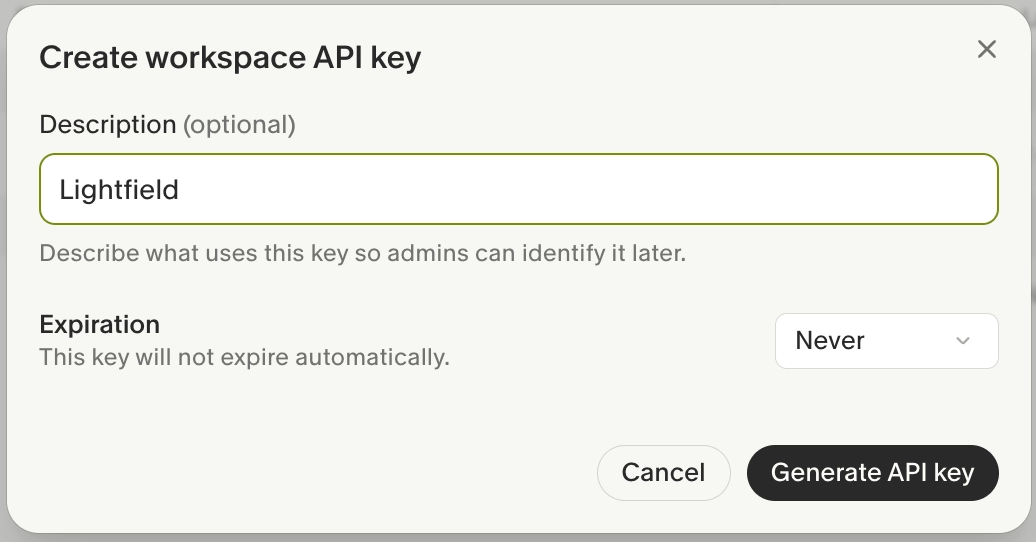
-
In Lightfield, go to Settings → Integrations, find Granola, and click Connect.
-
Paste the key into Granola workspace API key.
-
Under Choose a back sync range, pick how far back to import. The default is 1 month, which covers recent meetings without flooding older ones.
-
Click Confirm.
Granola shows as Connected. Manual notes, the ones people type during a meeting, never sync from the workspace integration.
Connect your own Granola account
Section titled “Connect your own Granola account”Connect your own account to sync your private transcripts or your manual notes.
People with access to the Lightfield meeting’s full content can read its attached Granola transcripts and notes, including content that was private in Granola. Metadata-only access does not include them. Check the meeting’s visibility before you include private content.
-
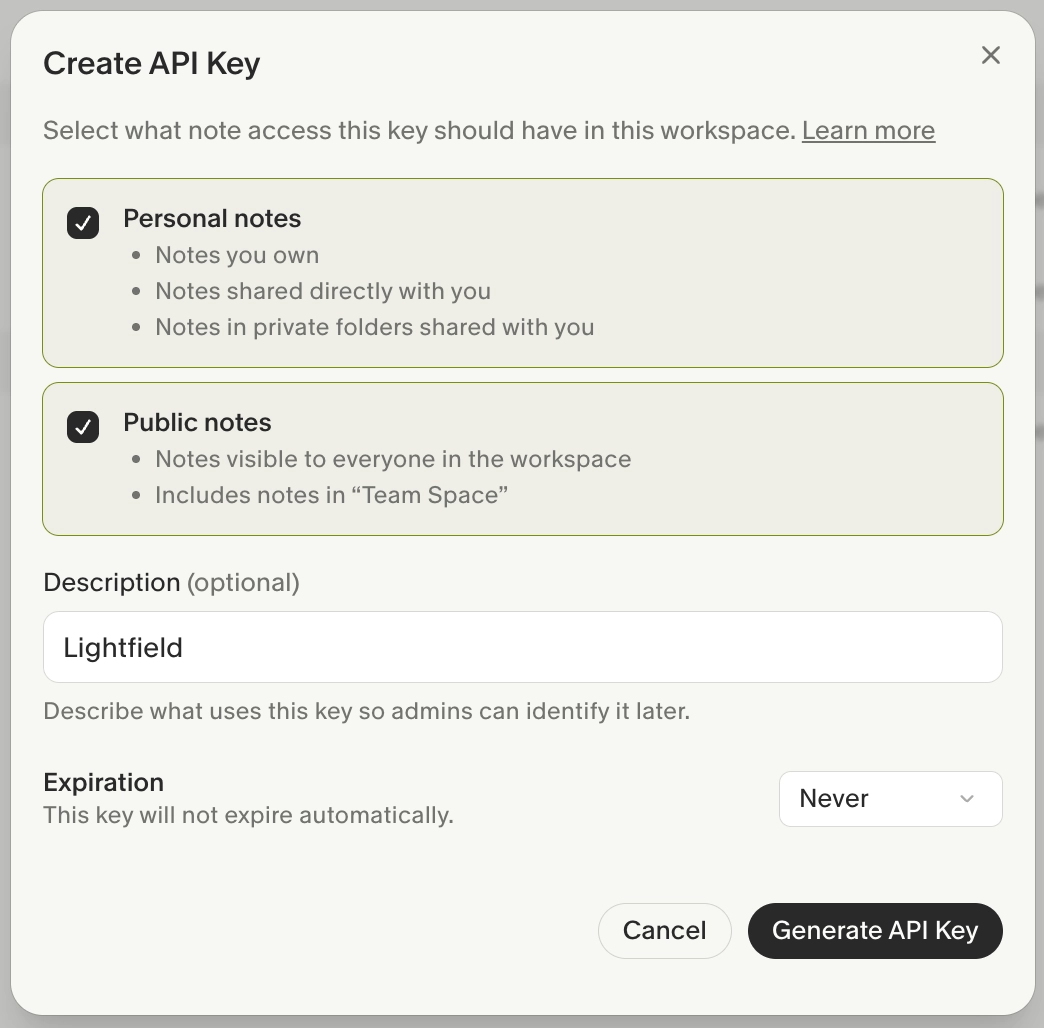
In Granola, go to Settings → Connectors → Personal API keys and create a key. Choose which notes it can access, and include private notes if you want private transcripts. Set the expiration to Never and copy the key.
-
In Lightfield, go to Settings → External apps, find Granola, and click Connect.
-
Paste the key into Granola personal API key.
-
Choose a back sync range.
-
Turn on Include manual notes if you also want the notes you typed. It’s off by default.
-
Click Confirm.
Granola shows as Connected. Changing your key’s access later isn’t retroactive: if you add private notes access after connecting, only private notes from then on sync. To widen the scope for older notes, revoke the key and connect again with a new one.
How Granola content shows up
Section titled “How Granola content shows up”Lightfield matches each Granola transcript to an existing meeting by its calendar event. It doesn’t create meetings; if the meeting isn’t in Lightfield yet, the transcript is held and attached when the meeting appears, for example after the attendee’s calendar is connected.
On each matched meeting you see:
- Transcript, with Granola shown as its Source in the meeting header.
- Enhanced notes, Granola’s AI notes, added as a note on the meeting.
- Manual notes, added as a separate note, only from your own connection with Include manual notes on.
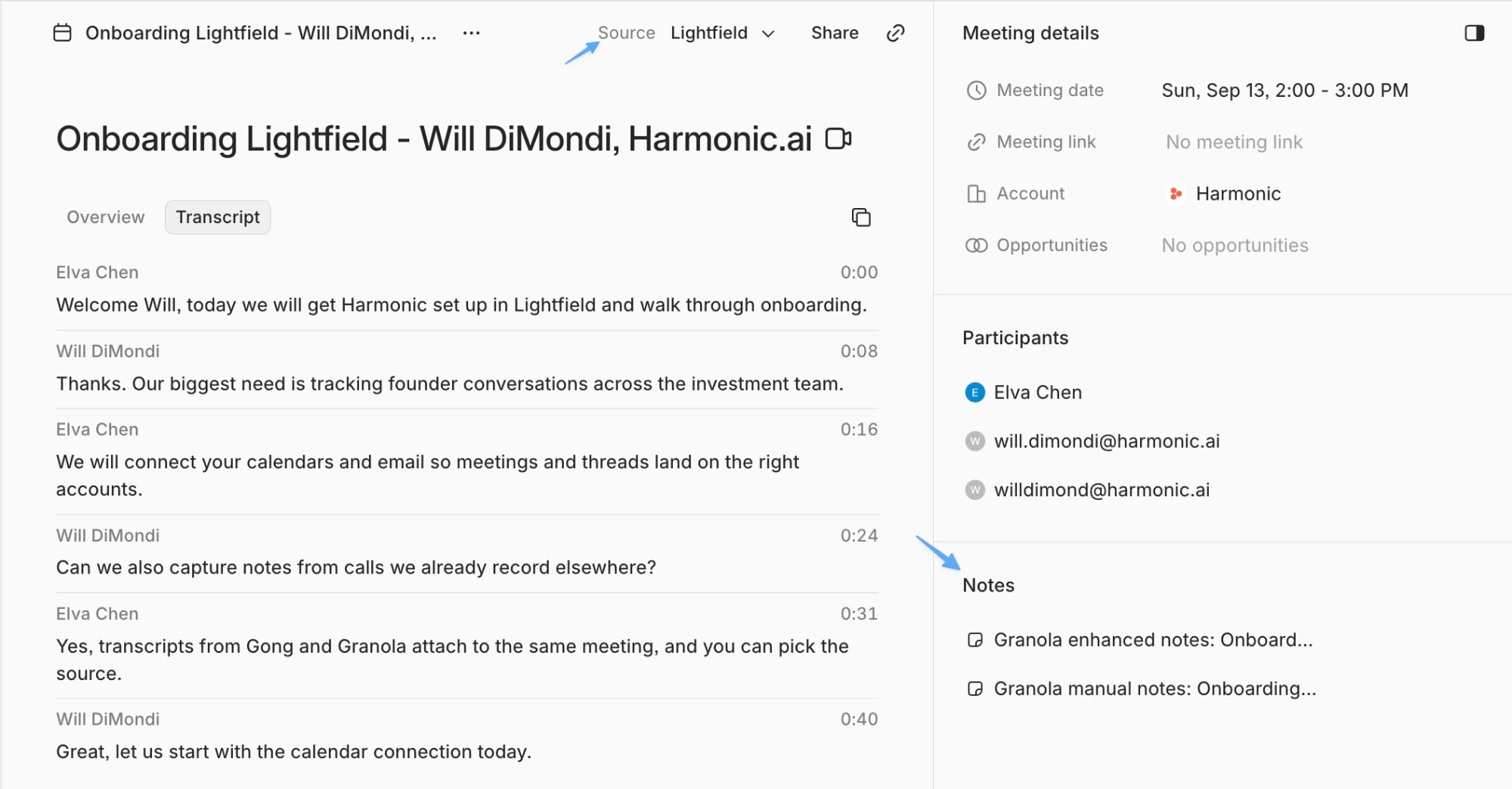
Notes are copied once, when the transcript is matched; later edits in Granola don’t sync. If both connections bring the same transcript, Lightfield keeps one, the latest version.
When a meeting also has a Lightfield recording, the Lightfield transcript is used by default. To use Granola’s, choose it from the Source dropdown in the meeting header, then click Use Granola in the banner. See Transcripts.
Disconnect Granola
Section titled “Disconnect Granola”- Your account: in Settings → External apps, disconnect Granola.
- The workspace: an admin disconnects it in Settings → Integrations.
- The key: delete it in Granola under Settings → Connectors. Lightfield stops syncing right away.
Transcripts and notes already on your meetings stay.
Troubleshooting
Section titled “Troubleshooting”I connected my own Granola account but can’t see my transcript
Section titled “I connected my own Granola account but can’t see my transcript”Check three things:
-
Your key’s access. Granola transcripts are private by default, so your key must include private notes.
-
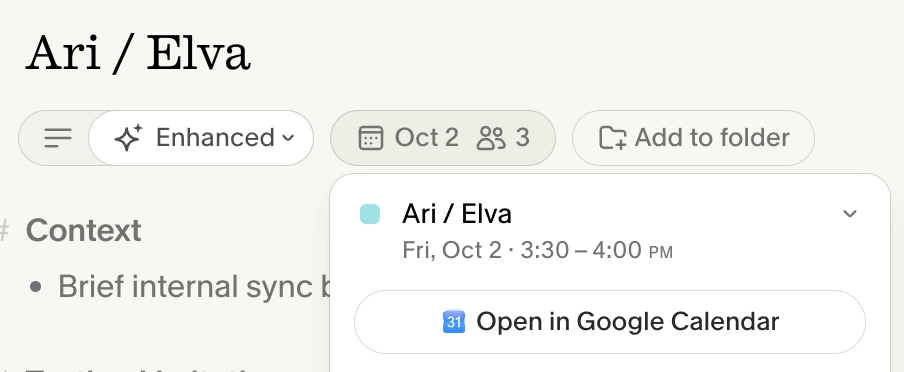
The calendar link. The note in Granola must be linked to a calendar event.
-
The meeting. It must exist in Lightfield. If it doesn’t, the transcript waits until it does.
Granola stopped syncing
Section titled “Granola stopped syncing”The API key expired or was revoked, and the card shows This integration has been disconnected or This app has been disconnected. Create a new key in Granola with the expiration set to Never, then connect again.
”Granola rejected this API key.”
Section titled “”Granola rejected this API key.””The key is wrong, expired or revoked. Copy it again from Granola, or create a new one.
”This is a personal API key.” or “This is a workspace API key.”
Section titled “”This is a personal API key.” or “This is a workspace API key.””You pasted the wrong kind of key. Settings → Integrations needs a workspace key, and Settings → External apps needs a personal key.
Common questions
Section titled “Common questions”I connected Granola in Settings → Connectors. Why aren’t my transcripts on my meetings? The Granola connector only lets the agent search your notes when you ask. Connect your own account in External apps, or ask an admin to connect the workspace in Integrations.
Do we need the workspace integration before I connect my own account? No. The two connections are independent.
Why aren’t my manual notes syncing? They sync only from your own connection with Include manual notes on. Open your Granola connection in Settings → External apps and turn it on.
Will meetings get duplicate Granola transcripts? No. Lightfield keeps one version from Granola per meeting, the latest.
Can I add a Granola transcript to a meeting myself? Yes. You can upload transcript text or ask the agent to attach it. The Granola integration matches synced transcripts automatically; it does not offer a manual relink control.