
Gong
Sync Gong recordings and transcripts to matching Lightfield meetings.
Connect Gong once for your workspace, and Gong recordings and transcripts appear on the matching meetings already in Lightfield, where the agent can use them.
Who can use it
Section titled “Who can use it”Gong isn’t tied to a plan. An owner or admin connects it in Settings → Integrations, and you need permission in Gong to approve the connection. Instant sync also needs a Gong tech admin.
Connect Gong for your workspace
Section titled “Connect Gong for your workspace”People with access to a Lightfield meeting’s full content can read its attached Gong recording and transcript; metadata-only access does not include them. Check privacy and access before syncing.
- Go to Settings → Integrations, find Gong, and click Connect.
- Approve the permissions in Gong.
- Under Choose a workspace to sync from, pick the Gong workspace. Only its recordings and transcripts are available in Lightfield.
- Under Choose a back sync range, pick how far back to sync, up to two years. A longer range brings more history onto your existing meetings.
- Click Confirm.
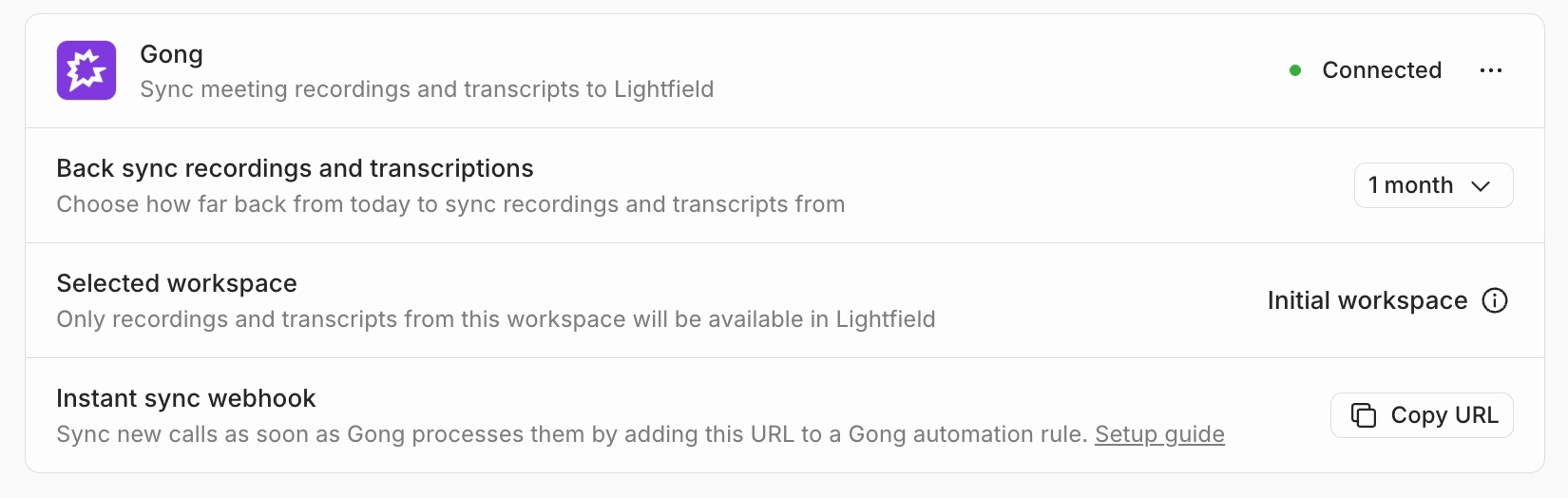
Gong shows as Connected, with your workspace under Selected workspace. You can change the back sync range later on the same card. To change workspace, disconnect and reconnect Gong.
Set up instant sync
Section titled “Set up instant sync”Without instant sync, new Gong calls arrive on the next periodic sync. With it, a call syncs as soon as Gong finishes processing it, which can take a while after the call ends. This step is optional.
-
In Settings → Integrations, on the Gong card, find Instant sync webhook and click Copy URL. The URL contains a secret key, so treat it like a password.
-
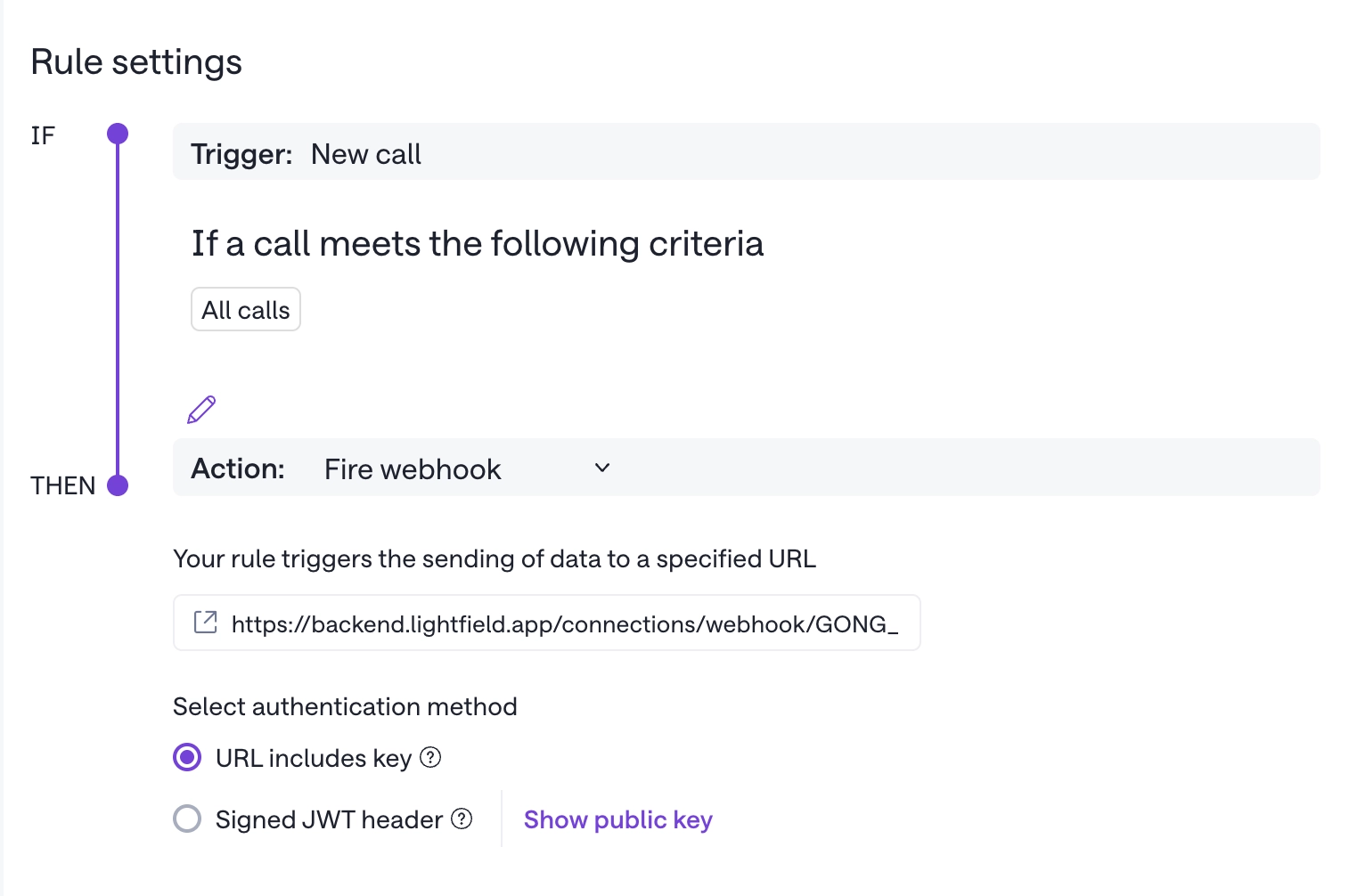
In Gong, go to Admin center → Settings → Ecosystem → Automation rules and click + Add Rule.
-
Set Trigger to New call and Action to Fire webhook. All calls is fine for criteria, because Lightfield keeps only calls from the workspace you selected.
-
Paste the URL and set Authentication method to URL includes key, not Signed JWT header.
-
Name the rule. Test now sends a real call to Lightfield; choose a call you want to sync, test it, then turn the rule on.
The test sends a real call, which syncs to Lightfield. The URL stays the same if you disconnect and reconnect Gong. If you remove the integration, delete the rule in Gong.
How Gong calls show up
Section titled “How Gong calls show up”Lightfield matches each Gong call to an existing meeting by its calendar event, or failing that by the same meeting link within six hours of the call’s start. After Gong finishes processing the call, the recording and transcript appear on the meeting page.
Gong doesn’t create meetings. A call with no matching meeting is held and attached if the meeting appears later, for example after the attendee’s calendar is connected.
The meeting’s content visibility also controls access to its Gong recording and transcript.
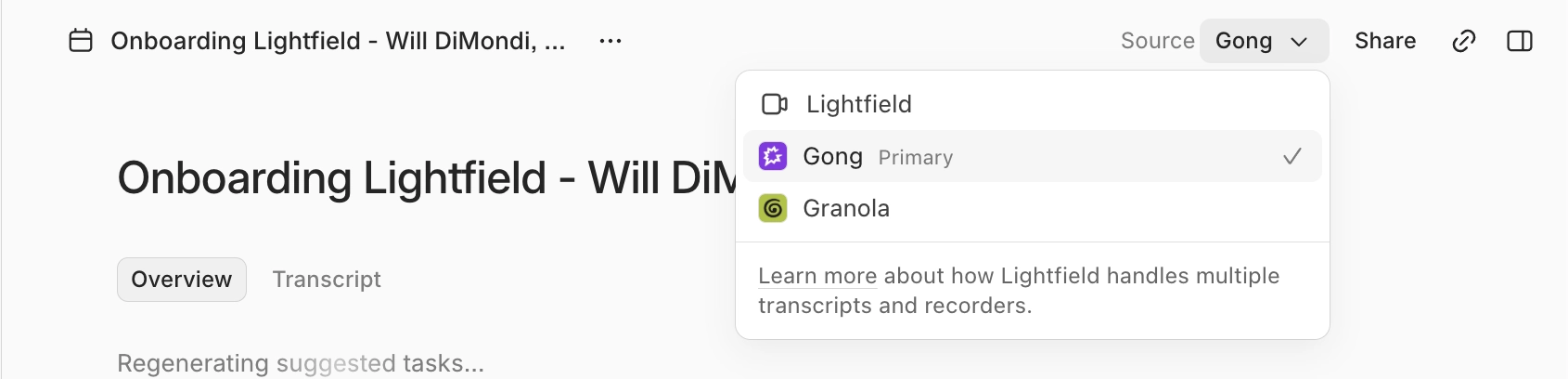
When a meeting has a Lightfield recording too, the summary and suggested tasks come from the Lightfield transcript by default. To use Gong’s instead, choose Gong from the Source dropdown in the meeting header, then click Use Gong in the banner. See Transcripts. To stop the Lightfield recorder joining calls Gong already records, see Recording.
Disconnect Gong
Section titled “Disconnect Gong”An admin disconnects Gong in Settings → Integrations. New Gong recordings stop syncing; ones already attached stay.
Troubleshooting
Section titled “Troubleshooting”A meeting I know was recorded has no Gong recording
Section titled “A meeting I know was recorded has no Gong recording”Gong attaches only to meetings that exist in Lightfield, and only within the back sync range chosen when connecting. Check that the meeting is in Lightfield and that Gong shows Connected. Without instant sync, a new call arrives on the next periodic sync.
The Gong card says This integration has been disconnected
Section titled “The Gong card says This integration has been disconnected”Your Gong session expired or its permissions were revoked, so calls aren’t syncing. Click Reconnect on the card and approve in Gong.
Common questions
Section titled “Common questions”What happens if I change the back sync range after connecting? It applies from then on. Recordings already attached stay.
How do I change the Gong workspace? Disconnect Gong, connect again, and choose the workspace you want.
Are Gong transcripts available through the API and MCP? Yes. A Gong transcript attached to a meeting is available through the meeting transcript API like any other transcript.