
Workflows
Build, test, activate and pause workflows in Settings → Workflows, and see which triggers and steps the workflow builder offers.
Available on Pro, Growth and Enterprise
A workflow is one trigger followed by steps you configure yourself in a visual builder, such as “when a Stripe webhook arrives, find or create the contact, then create an opportunity”. Any step can be an AI agent that reads the data and decides what to change.
Who can use it
Section titled “Who can use it”Workflows are on Pro, Growth and Enterprise. Only owners and admins see Settings → Workflows. Workflows are built in the builder; there’s no API for creating them.
Earlier plans can differ. Check your workspace’s available features.
Create a workflow
Section titled “Create a workflow”Activating a workflow starts its trigger. Check what its steps will create, update or send before you activate it.
- Go to Settings → Workflows and click Create workflow. An Untitled workflow opens as a Draft.
- Click Select a trigger to start your workflow and choose one trigger. Every workflow has exactly one.
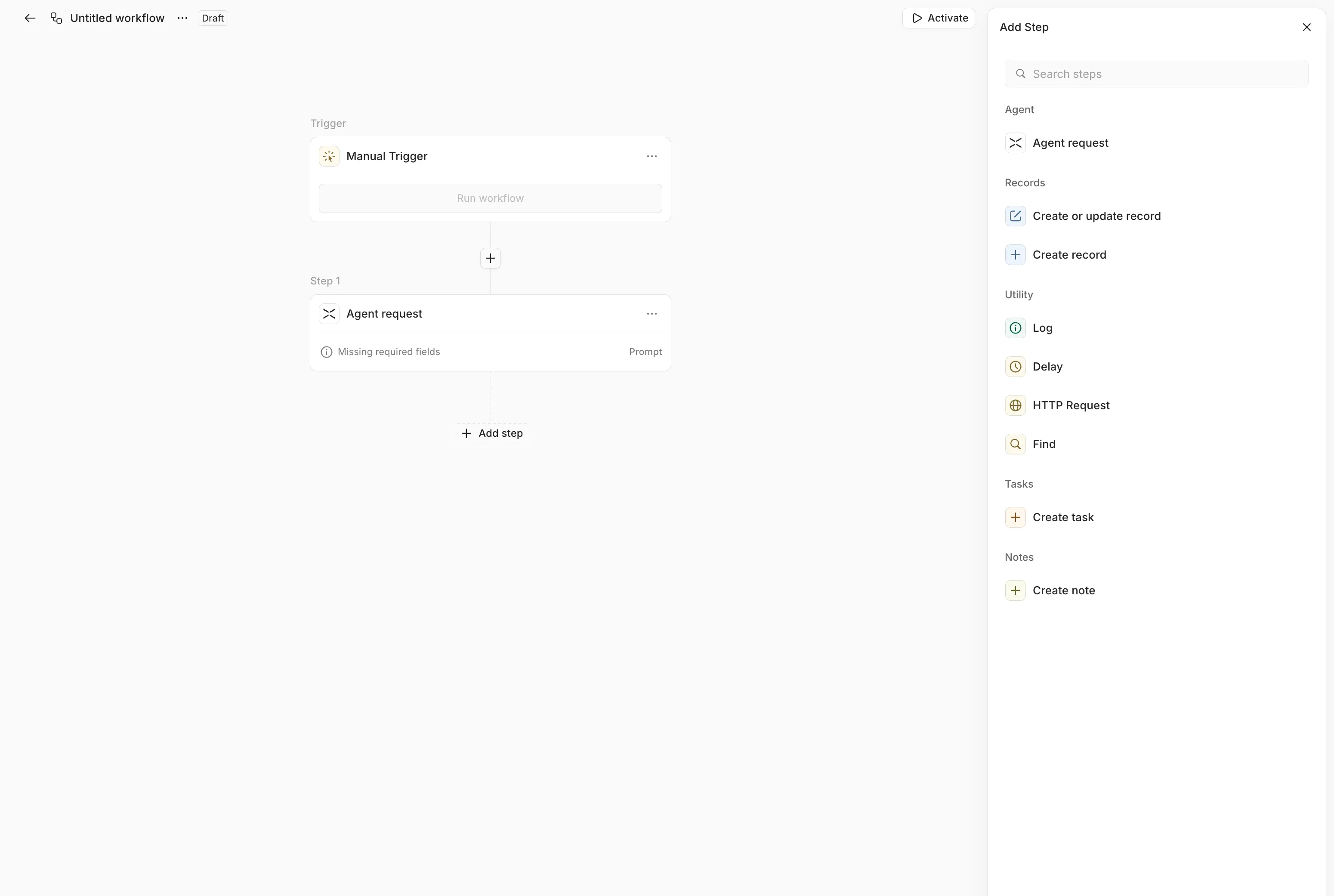
- Click + to add steps. Steps run in the order you add them, and each waits for the one before it to finish.
- Fill in each step’s fields. Any field can use output from the trigger or an earlier step (see Use one step’s output in another).
- Click Activate. The status changes to Active and the trigger starts firing.
The list in Settings → Workflows shows each workflow’s Name, Status, Runs, Created by and Last edited. Its row menu has Duplicate and Delete. Deleting a workflow is permanent and can’t be undone.
Triggers
Section titled “Triggers”| Trigger | Starts a run when |
|---|---|
| Record created, Record updated | A record of the type you choose is created or changed. An update trigger fires on any field change unless you pick the fields to watch, so a stage-change workflow ignores edits to the description. |
| When an upcoming meeting is scheduled | A future meeting is added |
| Task created, Task updated, Note created | A task or note is created or changed |
| Webhook received | Another service sends a request to the workflow’s webhook URL |
| On a schedule | The schedule comes round: daily, weekly, monthly, or a custom cron expression, in the time zone you set |
| Manual Trigger | You click Run workflow, optionally with a JSON payload |
For Webhook received, copy the URL from the trigger into the other service, such as Stripe or your own tool. The HTTP method is POST by default, and the request body becomes the trigger’s output; switch it to GET to use query parameters instead. A request with the other method is rejected. You can paste an example body so the builder suggests its fields; the workflow still accepts any valid JSON.
An update trigger’s output includes _diff, the before and after values of each changed field, such as {{trigger._diff.stage.before}}.
| Step | What it does |
|---|---|
| Create record, Create or update record | Creates an account, contact or opportunity, or updates the matching one if it exists |
| Create task, Create note | Creates a task or a note on a record |
| Find | Searches records with filters and sorting, and passes the matches to later steps |
| HTTP Request | Calls an outside API with GET, POST, PUT, PATCH or DELETE, headers and a JSON body. Only public HTTPS addresses. |
| Agent request | Runs Lightfield’s agent with your prompt |
| Delay | Waits from milliseconds to days before the next step |
| Log | Writes a message to the run’s history, useful for checking values |
An HTTP Request step’s status code, headers and parsed body are available to later steps, such as {{httpStep.statusCode}}.
Agent request
Section titled “Agent request”The agent can always search and read your records, and it can run code in a sandbox to match or reshape data. Under Allow Lightfield to, three more capabilities are on when you add the step: Create records, tasks and notes, Update records and tasks and Use web search. Turn off what the step doesn’t need, so an agent that only summarizes can’t change records. Use connectors lets it use apps connected in Connectors.
Use Agent request when the data needs interpreting or the field mapping isn’t one to one, for example a raw Stripe event that should become the right contact, account and opportunity. Use the record and HTTP Request steps when the mapping is simple, because they behave the same way every time.
Use one step’s output in another
Section titled “Use one step’s output in another”Reference earlier output with double braces: {{trigger.email}} for the trigger, {{nodeId.field}} for a step, and {{nodeId.nested.field}} for nested values. Any earlier step works, not only the one just before. For example, a Create record step can set Name to {{trigger.customer_name}} and Email to {{trigger.customer_email}}.
Test, pause and edit
Section titled “Test, pause and edit”A test run executes the workflow’s steps, including any changes to records or requests to outside services. Check the input and enabled steps before running it.
- Test run appears on workflows with a Webhook received trigger. Paste a sample body and click Run workflow to start a real run. You can’t test run a Deactivated workflow.
- Pause stops the trigger and sets the status to Deactivated. Reactivate turns it back on.
- Editing an Active workflow creates a new version. Runs already going keep the version they started with.
How runs behave
Section titled “How runs behave”- Failures: a temporary failure, such as a timeout or a 502, 503 or 504 response, retries automatically with backoff. A permanent failure, such as a missing field or a template that can’t resolve, fails the step at once, and the steps after it are skipped.
- Event delivery: retrying delivery of the same internal event does not create another run. A repeated incoming webhook request is a new event and can start another run. Match on a stable source ID when creating or updating records so a sender retry does not create duplicates.
- Interruptions: a run that’s interrupted picks up from its last completed step instead of starting over.
Example: process a demo request
Section titled “Example: process a demo request”For a workflow you maintain, map a webhook form submission to three steps:
- Create or update account using
{{trigger.company}}. - Create or update contact using
{{trigger.email}}and{{trigger.name}}. Check the matching fields so repeat submissions update the intended record. - Create task, linked to the account returned by the first step.
Use the variable picker to select earlier outputs. Paste a sample payload such as {"email":"dana@example.com","name":"Dana Reyes","company":"Northwind Analytics"} into the webhook trigger to expose its fields. Click Publish changes, then test with your own address. Check the records and task before activating, and remove test data afterward.
For more examples, see Workflow recipes.
Fix a failed run
Section titled “Fix a failed run”- Open the workflow in Settings → Workflows.
- Open Runs in its details panel, then open the failed run.
- Read the failed step’s error and check its inputs. A template may reference a field the trigger did not send.
- Check what earlier steps already created or changed. Fix the step, click Publish changes, and test again with safe data.
The next run should show every step completed. Existing runs keep their original version.
For an API integration, see reading a workflow run’s status.
Common questions
Section titled “Common questions”Should I use a workflow or an automation? Use an automation for a new process: describe it in chat and the agent builds and tests it with you. Existing workflows keep running; you can keep using the builder to maintain them. See Automations.
Can a workflow call an external API? Yes. Add an HTTP Request step with the method, URL, headers and JSON body. Requests go only to public HTTPS addresses.
Does editing a workflow change runs already in progress? No. Runs keep the version they started with; your change applies to new runs.
Can a webhook retry run the workflow twice? Yes. Each incoming webhook request can start a new run. Match records on stable IDs and use create-or-update steps so retries update the intended record. Internal redelivery of the same Lightfield event does not create another run.