
Microsoft Teams
Sync Teams channels to accounts and opportunities for shared record context.
Available on Pro, Growth and Enterprise
Connect a Microsoft Teams channel to an account or opportunity, and its messages appear in the record’s Activity log, where the Lightfield agent also uses them to keep summaries current and answer questions.
Who can use it
Section titled “Who can use it”Teams sync is on Pro, Growth and Enterprise. If you use Slack too, Starter includes Slack channel sync. That connection imports Slack messages, not Teams history. To get Teams sync, an admin changes your plan in Billing. On plans without it, Microsoft Teams doesn’t appear in Settings → Integrations or Settings → External apps.
An owner or admin connects the workspace, then each person connects their own account. Your Microsoft organization may need a Microsoft 365 admin to approve the Lightfield app.
Earlier plans can differ. Check your workspace’s available features.
Connect Teams for your workspace
Section titled “Connect Teams for your workspace”An owner or admin does this once.
- Go to Settings → Integrations and find Microsoft Teams.
- Decide on Back sync channel history. It’s on by default, and we recommend leaving it on so a newly linked channel arrives with its history. Off, syncing starts from the moment a channel is linked.
- Click Connect and approve the permissions in Microsoft.
- Under Choose a team to sync channels from, pick the team. Only that team’s channels are available in Lightfield, and none sync until a team is selected.
- Click Confirm.
Microsoft Teams shows as Connected, with your team under Selected team. Until this is done, nobody can connect their own account.
Connect your own Teams account
Section titled “Connect your own Teams account”- Go to Settings → External apps, find Microsoft Teams, and click Connect.
- Approve in Microsoft, signing in with an account in the same Microsoft organization as your workspace.
Teams shows as Connected. This tells Lightfield which private channels you’re in, so it shows you only messages you can access.
Sync a channel to a record
Section titled “Sync a channel to a record”Private-channel messages are visible only to members of that channel and are never used by the agent.
- Open the account or opportunity.
- In its Teams channel field, click Connect channel and pick a channel from the selected team.
Messages, reactions, images and attachments appear in the record’s Activity log.
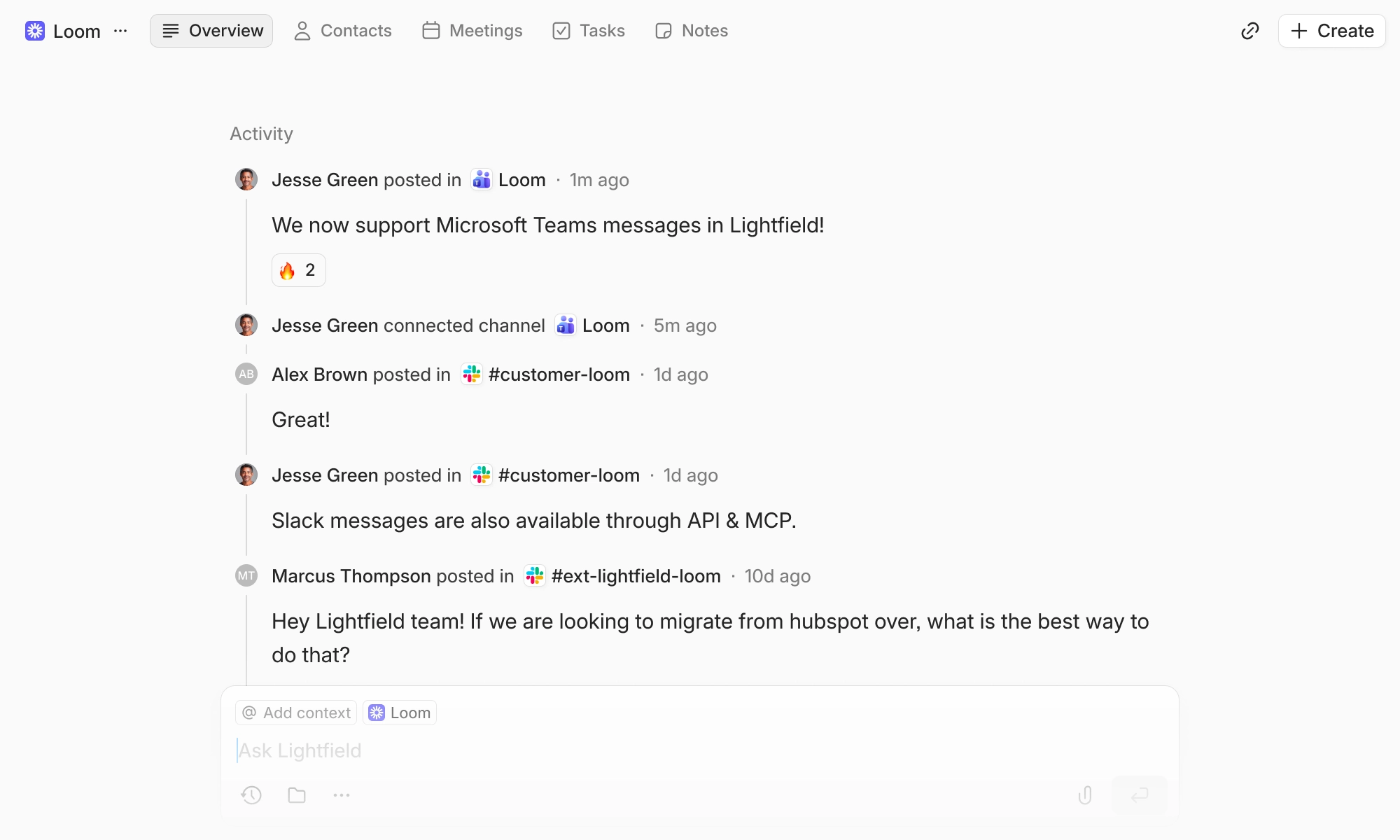
Linked Teams channels work like Slack channels:
- Members match to contacts by email. Change the match in the contact’s Teams users field.
- The agent uses public channels for summaries, record updates and answers.
- Only channel members can see private-channel messages, and the agent never uses them.
- Unlinking a channel removes its messages from that record. See How synced messages are used.
If an edit or deletion happens more than two months after a message was sent, Lightfield may not reflect it.
Disconnect Teams
Section titled “Disconnect Teams”- Disconnect your account: in Settings → External apps, disconnect Microsoft Teams.
- Disconnect the workspace: an admin disconnects it in Settings → Integrations.
Troubleshooting
Section titled “Troubleshooting””Admin consent is required to connect Microsoft Teams.”
Section titled “”Admin consent is required to connect Microsoft Teams.””Your Microsoft organization requires an administrator to approve the Lightfield app. Ask your Microsoft 365 admin to approve it, or to connect Teams in Lightfield themselves, then try again.
”Your workspace admin needs to connect Microsoft Teams before you can connect your account.”
Section titled “”Your workspace admin needs to connect Microsoft Teams before you can connect your account.””The workspace connection isn’t done yet. Ask a Lightfield admin to connect Teams for your workspace, then connect your account.
”Your Microsoft Teams account is already linked to a contact.”
Section titled “”Your Microsoft Teams account is already linked to a contact.””Your Teams account is set on a contact record. Open that contact, remove your account from its Teams users field, then connect again in Settings → External apps.
”This Microsoft Teams team is already connected to another workspace.”
Section titled “”This Microsoft Teams team is already connected to another workspace.””Each team syncs to one Lightfield workspace. Disconnect it in the other workspace, or pick a different team.
Common questions
Section titled “Common questions”How do I change which team Lightfield syncs from? Reconnect Microsoft Teams. An admin disconnects it in Settings → Integrations, connects again, and picks the new team.
What happens if I turn off back sync later? It applies only to channels linked from then on, which start syncing from the moment they’re linked. Messages already synced stay.
Is Teams context available through the API and MCP? Yes. Synced Teams messages are available like other CRM data.
Which plans include Teams sync? Pro, Growth and Enterprise. On Starter, you can sync Slack channels instead.