
Slack
Sync Slack channels, chat with the agent and receive notifications.
Connect Slack to chat with the agent, receive notifications and sync channel messages to accounts and opportunities.
Who can use it
Section titled “Who can use it”Slack channel sync is on Starter, Pro, Growth and Enterprise. An owner or admin connects the workspace in Settings → Integrations, then each person connects their own account in Settings → External apps.
If your workspace does not include channel sync, the Slack card is absent from Settings → External apps. You can still connect for notifications in Settings → Notifications when that page offers the connection. Check your workspace’s available features before changing plans.
The agent in Slack runs inside Slack’s AI app container, which needs a paid Slack plan. Notifications and digests work on every Slack plan.
Earlier plans can differ. Check your workspace’s available features.
Connect Slack for your workspace
Section titled “Connect Slack for your workspace”- Go to Settings → Integrations and find Slack.
- Decide on Back sync channel history. It’s on by default, and we recommend leaving it on so a newly linked channel arrives with its history. Off, syncing starts from the moment a channel is linked to a record.
- Click Connect and approve the permissions in Slack.
Slack shows as Connected. Until this is done, nobody can connect their own account.
Connect your own Slack account
Section titled “Connect your own Slack account”- Go to Settings → External apps, find Slack, and click Connect.
- Approve in Slack. Connect to the same Slack workspace your organization connected. This maps your Slack member ID to your Lightfield user, so the agent knows who you are and shows you only data you can access.
Slack shows as Connected. The Lightfield app appears under Apps in your Slack sidebar and sends you a welcome message.
Chat with the agent in Slack
Section titled “Chat with the agent in Slack”Open a direct message with the Lightfield app under Apps and ask a question. The agent in Slack is for quick work:
- Look up records: “What’s the latest on the Acme renewal?” or “Show me open opportunities closing this month.”
- Update records: “Mark the Acme deal as Closed Won.” or “Set the next step on Nimbus to ‘send proposal’.”
- Ask across your CRM: “Which accounts haven’t been touched in 30 days?”
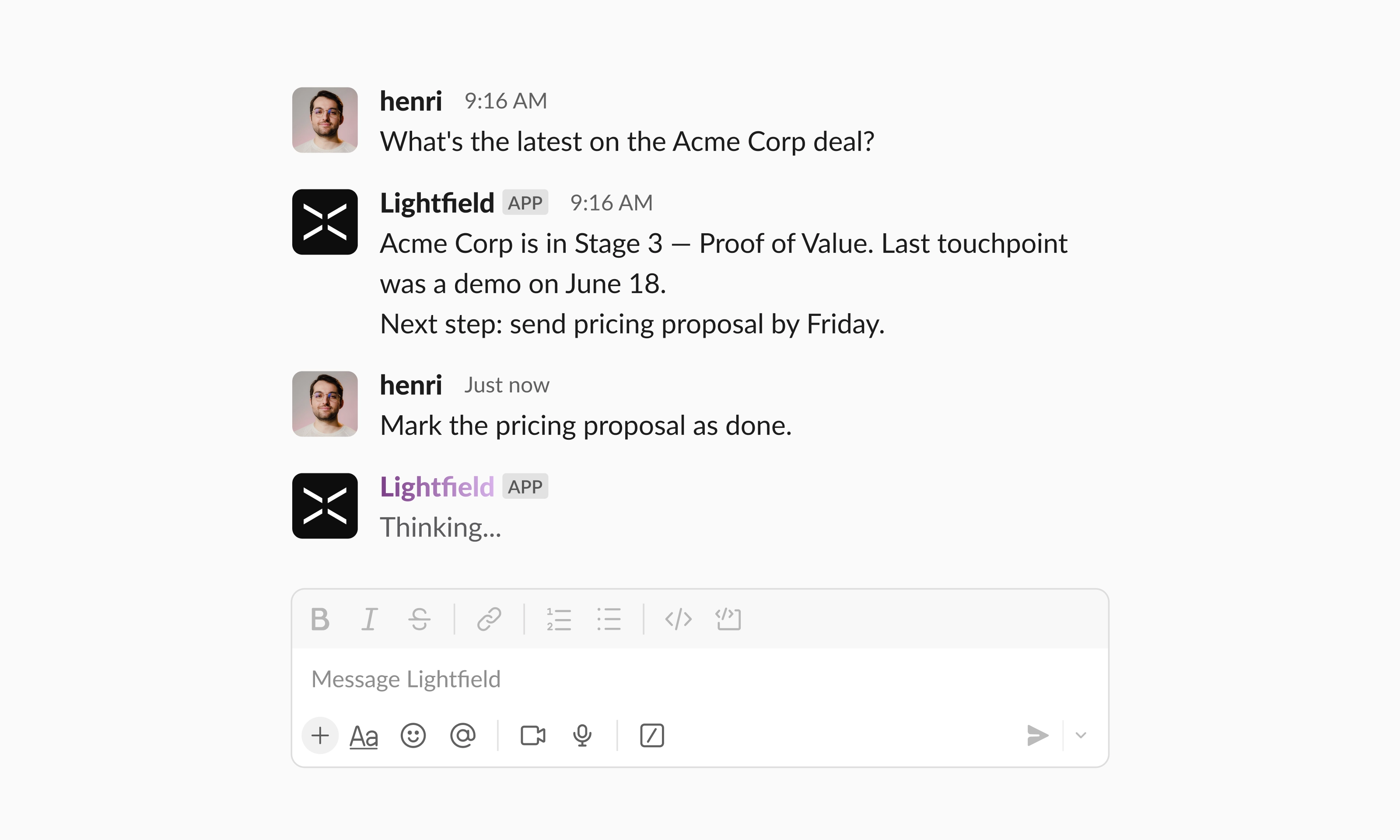
Mentioning @Lightfield in a channel isn’t supported. For building automations and sequences, sending email, or changing settings, the agent points you to the Lightfield app. The agent can make mistakes, so check its answers and record changes before you rely on them.
Get automation messages in Slack
Section titled “Get automation messages in Slack”Automation messages need a plan with Automations: Pro, Growth and Enterprise. Slack channel sync and notifications have separate availability, as described above.
An automation can send its output to you in Slack as a direct message, for example “every Monday, review my pipeline”. Choose which notifications reach Slack in Notifications. To post into a shared channel instead, create a Slack workflow with a webhook trigger and ask Lightfield in chat to build an automation that calls its URL; see Automations.
Post to a shared channel
Section titled “Post to a shared channel”Follow Send automation messages to a Slack channel to create the Slack webhook and connect your automation. This sends messages to Slack; it does not sync channel messages into Lightfield.
Sync a channel to a record
Section titled “Sync a channel to a record”To connect a private channel, first invite @Lightfield to it in Slack, then click Refresh channel list. Private channels appear only after the bot is added.
- Open the account or opportunity.
- In its Slack channel field, click Connect channel and pick the channel.
Messages, reactions and file attachments from the channel appear in the record’s Activity log.
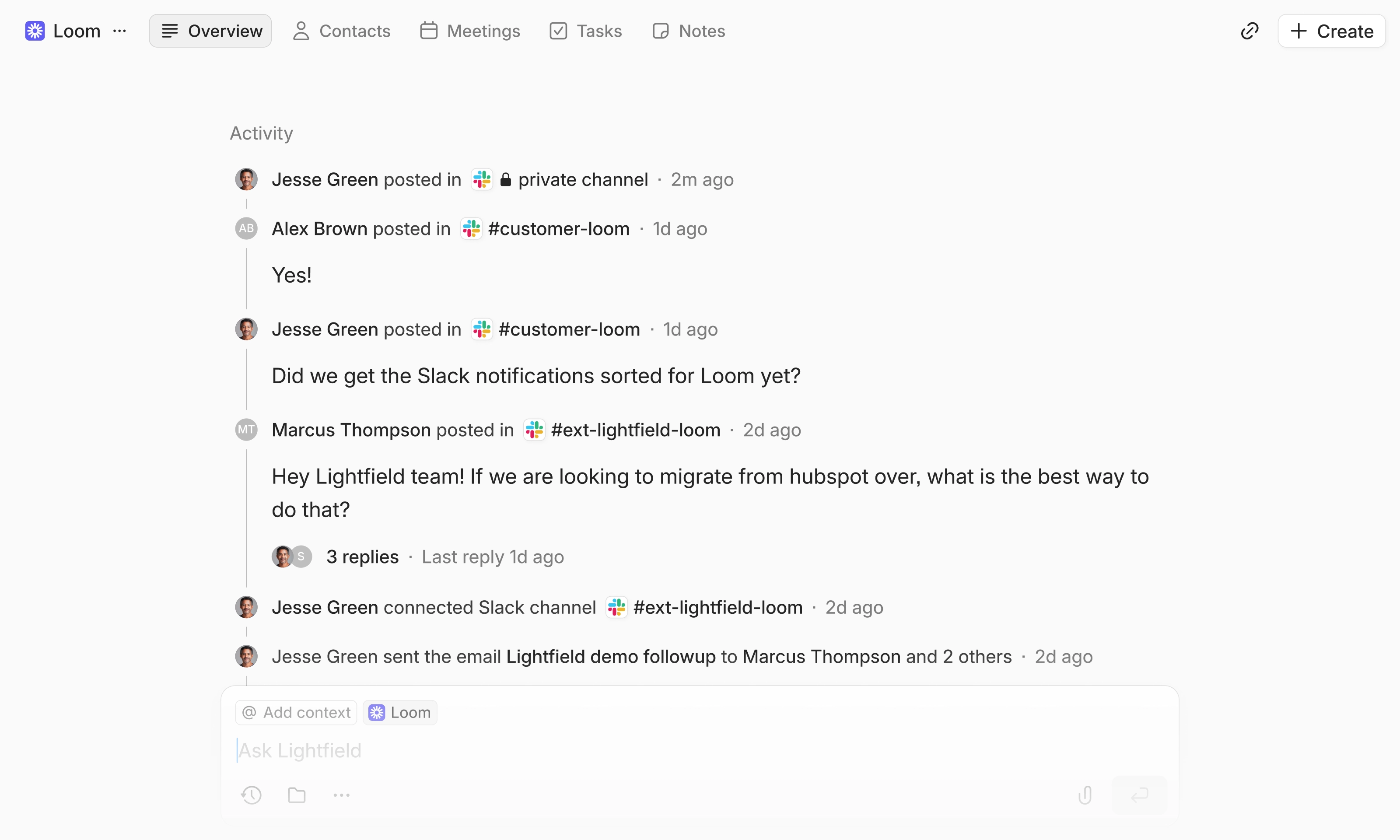
If an edit or deletion happens more than two months after a message was sent, Lightfield may not reflect it.
How synced messages are used
Section titled “How synced messages are used”- Contacts: Lightfield matches Slack members to your contacts by email address. Their messages, and messages that @mention them, show on the contact’s activity log. Change the match in the contact’s Slack users field. One Slack member maps to one contact; a contact can have several. Lightfield doesn’t create contacts from channels.
- The agent: Lightfield keeps account and opportunity summaries current from linked channels, proposes record updates from them, and answers questions about Slack activity when you ask about a specific account or opportunity.
- Privacy: a private channel’s messages are visible only to Lightfield members who are also in that channel; everyone else sees metadata. Messages from private channels are never used for summaries, record updates or agent answers. Public-channel messages are visible to your workspace.
- API and MCP: synced Slack messages are available through the API and MCP like other CRM data.
AI disclaimer
Section titled “AI disclaimer”Lightfield uses large language models to understand your requests and generate responses, and the agent can make mistakes. Summaries, answers, and proposed record updates may be inaccurate or incomplete. Please review the agent’s output before relying on it, and double-check any record changes it makes. Lightfield does not use your Slack data to train large language models.
Privacy and data
Section titled “Privacy and data”Lightfield only surfaces information you already have access to in Slack and in Lightfield. It never exposes private channel content, messages, or record data to people who wouldn’t otherwise see them. All traffic is encrypted in transit (TLS 1.2+), OAuth tokens are stored securely and invalidated when the app is removed, and incoming requests from Slack are verified using Slack’s signing secret.
Our privacy policy covers what data we collect, how it’s used, how long it’s retained, and how to access, transfer, or delete it:
- Privacy policy: lightfield.app/privacy
- Data requests / questions: support@lightfield.app
Disconnect or remove Slack
Section titled “Disconnect or remove Slack”- Unlink a channel: remove it from the record’s Slack channel field. Its messages leave that record’s activity log. A channel linked to no record stops syncing; its messages are kept in case you link it again.
- Disconnect your account: in Settings → External apps, disconnect Slack.
- Disconnect the workspace: an admin disconnects Slack in Settings → Integrations.
- Remove the app: a Slack admin removes it in Slack under Settings & administration → Manage apps, which revokes its tokens.
Troubleshooting
Section titled “Troubleshooting”The bot says my Slack account isn’t connected, but I’m connected in Lightfield
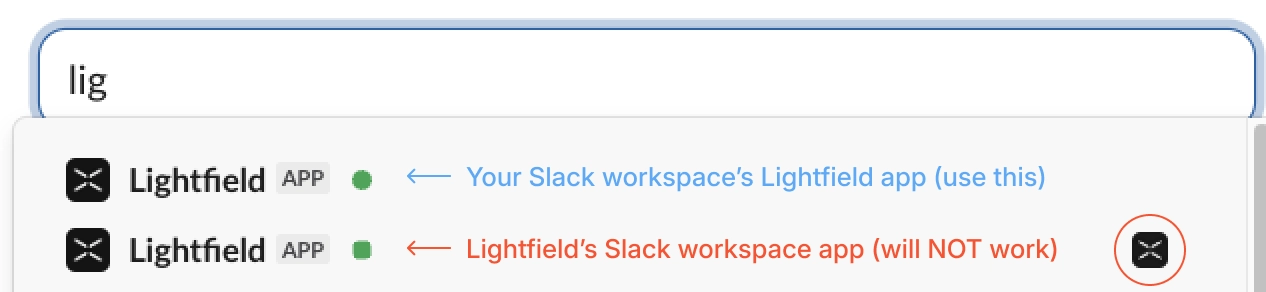
Section titled “The bot says my Slack account isn’t connected, but I’m connected in Lightfield”You’re most likely messaging the wrong Lightfield bot. A Lightfield bot under External Connections, or in a channel whose name starts with ext-, belongs to a shared channel with another company, and it can’t identify you. Message the Lightfield app under Apps in your own workspace. If you see two, check which Slack workspace each app belongs to; the screenshot below circles the app in your own workspace. If it still fails, reconnect in Settings → External apps.
Connect is greyed out in External apps
Section titled “Connect is greyed out in External apps”Your admin hasn’t connected Slack yet. The card says Ask your workspace admin to enable Slack in Integrations settings first. Ask them to connect Slack for your workspace.
”Your Slack account is already linked to a contact.”
Section titled “”Your Slack account is already linked to a contact.””Your Slack member ID is set on a contact record. Open that contact, remove your ID from its Slack users field, then connect again in Settings → External apps.
”You must connect to the same Slack workspace as your organization.”
Section titled “”You must connect to the same Slack workspace as your organization.””You approved in a different Slack workspace. Switch to the workspace your organization connected in Slack, then click Connect again.
I can’t find a private channel
Section titled “I can’t find a private channel”Slack shows private channels only to apps that were invited. Invite @Lightfield to the channel in Slack, then click Refresh channel list.
I can’t read a private channel I’m in
Section titled “I can’t read a private channel I’m in”Your own Slack account isn’t connected, so Lightfield can’t tell which channels you’re in and shows only metadata. Connect it in Settings → External apps.
Slack asks admins to update permissions
Section titled “Slack asks admins to update permissions”Your workspace connected Slack before the agent and channel sync launched. An admin opens Settings → Integrations, finds Update permissions to fully integrate Slack with Lightfield, clicks Update permissions and approves in Slack. Your existing setup stays connected.
Support
Section titled “Support”We respond within two business days.
Use the contact details in Help or check service status.
Common questions
Section titled “Common questions”Can I mention @Lightfield in a channel? No. Chat with the agent in a direct message with the Lightfield app under Apps.
What happens if I turn off back sync later? It applies only to channels linked from then on, which start syncing from the moment they’re linked. Messages already synced stay.
Is Slack context available through the API and MCP? Yes. Synced Slack messages are available like other CRM data.
How much does the Slack integration cost? Nothing extra. It’s included with your Lightfield subscription; channel sync needs a plan that includes it.