
OneDrive and SharePoint
Connect your Microsoft work or school account and add OneDrive, SharePoint and Teams files and folders to records, where everyone who can see the record finds them on its Files tab.
Connect OneDrive to add files and folders from OneDrive, SharePoint sites and Microsoft Teams to accounts, contacts, opportunities and custom object records. Lightfield adds a link, not a copy. The item stays in Microsoft 365, and it appears on the record’s Files tab for everyone who can see the record.
OneDrive in Lightfield works only with a Microsoft work or school account, the kind your organization manages in Microsoft 365. A personal Microsoft account, such as an Outlook.com, Hotmail or Live address, can’t connect.
Who can use it
Section titled “Who can use it”OneDrive is on every current plan. There’s no workspace connection: owners, admins and members each connect their own Microsoft account. They can add OneDrive items to records they can edit. On an opportunity’s Files tab, adding also needs edit access to its account. Viewers can’t connect OneDrive or add or remove its items, but they see the OneDrive items on records they can see.
Before anyone in your Microsoft organization can connect, a Microsoft admin has to approve Lightfield for the organization. Until then, people who aren’t admins see Microsoft’s Need admin approval screen when they try to connect. See Approve Lightfield for your organization.
Approve Lightfield for your organization
Section titled “Approve Lightfield for your organization”A Microsoft admin, someone with the Global Administrator, Privileged Role Administrator, Cloud Application Administrator or Application Administrator role in your Microsoft organization, approves Lightfield once for everyone. They can do it while connecting their own OneDrive, or later in the Microsoft Entra admin center. The admin doesn’t need to be an owner or admin in Lightfield.
Lightfield asks Microsoft only to read files and sites the signed-in person can already open, and to read their basic profile. Approving it for the organization doesn’t let anyone see files they couldn’t already open in Microsoft 365.
While connecting your own account
Section titled “While connecting your own account”- In Lightfield, go to Settings → Integrations → OneDrive and, under Personal connection, click Connect.
- Sign in to Microsoft with your admin account.
- On Microsoft’s Permissions requested screen, tick Consent on behalf of your organization, then click Accept.
Your own OneDrive is now connected, and everyone else in your Microsoft organization can connect theirs without asking for approval. If you click Accept without ticking the box, only your account is approved.
In the Microsoft Entra admin center
Section titled “In the Microsoft Entra admin center”Lightfield appears in your Entra admin center once someone in your organization has signed in to it with Microsoft, for example by connecting Outlook mail and calendar or trying to connect OneDrive.
- Sign in to the Microsoft Entra admin center as an admin.
- Go to Enterprise applications → All applications and open Lightfield.
- Under Security, choose Permissions, then click Grant admin consent for your organization’s name.
- Review the permissions Microsoft lists and click Accept.
Once consent is granted, the permissions appear under Admin consent on the same page, and everyone in the organization can connect OneDrive in Lightfield.
If your organization has turned on Microsoft’s admin consent workflow, people who aren’t admins see Request approval on the Need admin approval screen instead. Their requests appear in the Entra admin center under Enterprise applications → Admin consent requests, where an admin can approve Lightfield for the organization.
Connect your OneDrive
Section titled “Connect your OneDrive”-
Go to Settings → Integrations → OneDrive. It’s listed under Storage.

-
Under Personal connection, click Connect and sign in with your Microsoft work or school account.
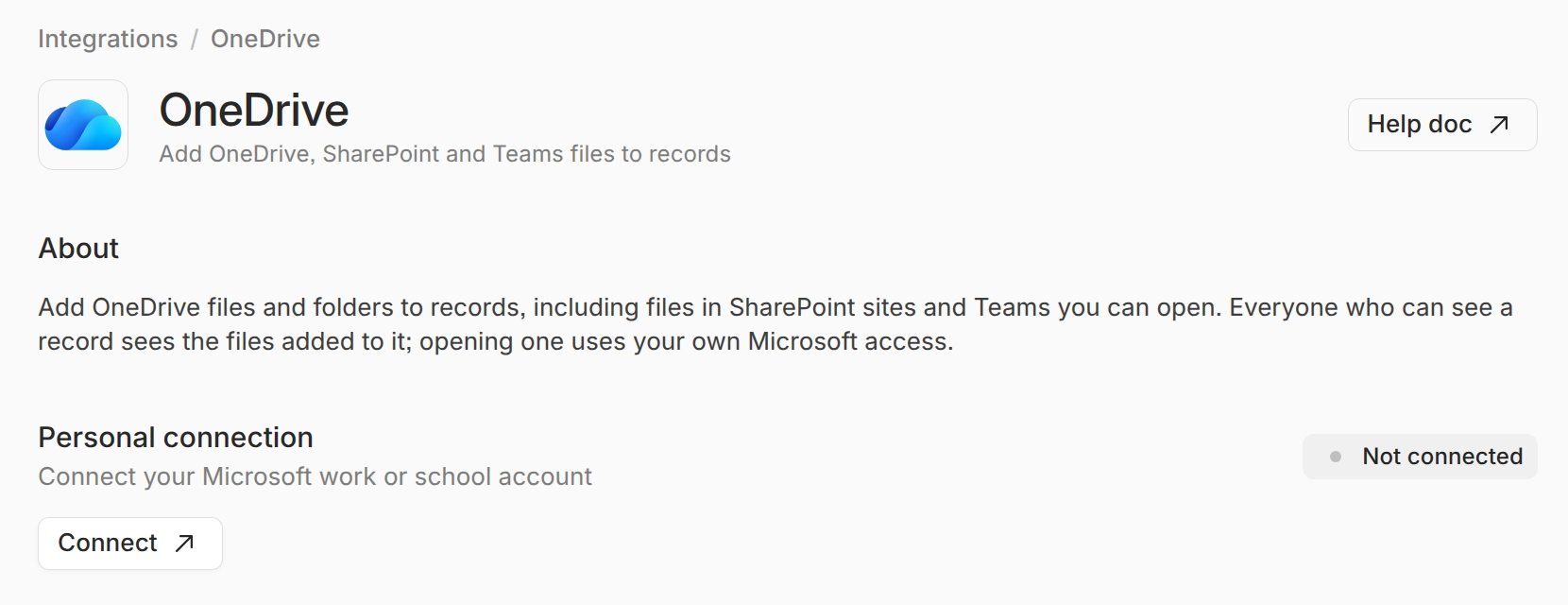
When you’re back in Lightfield, Personal connection shows Connected. If Microsoft says you need admin approval, ask your Microsoft admin to approve Lightfield for your organization, then click Connect again.
Lightfield only reads your OneDrive and SharePoint files. It never creates, changes or deletes anything there, and nothing is added to a record until you choose it.
Add OneDrive files and folders to a record
Section titled “Add OneDrive files and folders to a record”- Open the record’s full page and click Create at the top, then File → Add from OneDrive. On an empty Files tab, including in a half sheet, you can click Add file → Add from OneDrive instead, or click + in the Files section of the record’s side panel. If you haven’t connected OneDrive yet, Lightfield takes you to the OneDrive settings page first.
- In the Microsoft window, choose files or folders from your OneDrive, from Recent, or from the SharePoint sites and Teams libraries you can open. Add up to 100 at a time; a larger selection fails.
- Confirm your selection.
A message such as Added 2 items from OneDrive confirms the change, and the items appear on the record’s Files tab with OneDrive as their Source, including items from SharePoint. If an item is already on the record, the message says This item is already linked instead, or Added 1 · 1 already linked when your selection mixes both. The record’s Activity log shows who added each item, and who removed it later.
When you add a folder, Lightfield keeps its contents in sync, so files added to it later appear on the record too. A folder with more than 10,000 files syncs only partly.
You can’t add a whole OneDrive or SharePoint document library. To share a library’s contents, add folders inside it.
Open and remove OneDrive items
Section titled “Open and remove OneDrive items”Click a OneDrive file’s name, or choose Open in OneDrive from its … menu, to open it in Microsoft 365 in a new tab. Microsoft decides whether you can open it, based on your own access. Everyone who can see the record sees the names of the OneDrive items on it, even if the files aren’t shared with them, so check who can see the record before adding a file with a confidential name; see Control who can see your data. Click a folder’s name to expand it on the Files tab and see the files inside.
To take an item off a record, choose Remove from record from its … menu and confirm. The item stays in OneDrive or SharePoint. Removing a folder takes its files off the record with it, and you can’t remove a single file from inside an added folder. Removing an item from one record doesn’t remove it from other records it’s on. To bring a removed item back, add it again.
How the agent uses OneDrive and SharePoint
Section titled “How the agent uses OneDrive and SharePoint”Once you’ve connected OneDrive, you can ask the agent to search your OneDrive and SharePoint files, read a file or folder you link in chat, or read the OneDrive files on a record’s Files tab. It reads them through your own Microsoft connection, so it sees only what you can open. It can’t read a file over 50 MB; it shares the file’s link instead.
You can also ask it to add a OneDrive or SharePoint file or folder to a record, or remove one, for example “Add the Acme proposal from SharePoint to the Acme renewal opportunity.” You need to be able to edit each record. The agent shows a card, and nothing changes until you approve it.
Disconnect OneDrive
Section titled “Disconnect OneDrive”In Settings → Integrations → OneDrive, open More actions (…) next to Connected under Personal connection and choose Disconnect. Items you added stay on their records. If no other connected account in Lightfield covers an item, it shows the disconnected-account warning explained below.
Troubleshooting
Section titled “Troubleshooting”A OneDrive item on a record shows a warning icon
Section titled “A OneDrive item on a record shows a warning icon”Hover over the icon beside the item’s name to see why Lightfield can’t keep it in sync:
| Message | What to do |
|---|---|
| All OneDrive accounts linked to this item have been disconnected. | Whoever added it, or anyone else who added the same item, connects OneDrive again following the steps above. |
| Deleted or no longer shared in OneDrive | Ask the item’s owner to share it again. If the warning stays, remove it from the record and add it again. |
| No one here can open this now | Ask the item’s owner to share it with whoever added it, or remove it from the record. |
| Only part of this folder is synced (over 10,000 files) | Add smaller folders from inside it instead. |
| Couldn’t sync | Check that you can open the item in OneDrive or SharePoint, then remove it from the record and add it again. |
Microsoft says I need admin approval
Section titled “Microsoft says I need admin approval”Your Microsoft organization hasn’t approved Lightfield yet. Ask your Microsoft admin to approve Lightfield for your organization, or to click Request approval if Microsoft shows it, then click Connect again.
I can’t sign in with my Microsoft account
Section titled “I can’t sign in with my Microsoft account”OneDrive in Lightfield accepts only Microsoft work or school accounts. If you sign in with a personal Microsoft account, such as an Outlook.com address, Microsoft won’t let it connect. Sign in with the account your organization gave you instead.
Add from OneDrive says it couldn’t add the files
Section titled “Add from OneDrive says it couldn’t add the files”When Couldn’t add from OneDrive. Please try again. appears, check the items you picked: one may be a whole document library or no longer be shared with you. Open each in OneDrive or SharePoint to confirm you still have access, then add them again, no more than 100 at a time. If Personal connection in Settings → Integrations → OneDrive no longer shows Connected, click Connect first.
I don’t see Add from OneDrive
Section titled “I don’t see Add from OneDrive”Create appears only on a record’s full page, so open the full page or use Add file on an empty Files tab. You also need to be able to edit the record, and on an opportunity’s Files tab its account too. If you’re a viewer, or the record is in Deleted Items, the Files tab doesn’t offer it.