
Granola
The Granola integration brings your Granola meeting transcripts and notes into Lightfield, attaching them to the matching meetings so you can review them and the Lightfield agent can use them.
Getting started
Section titled “Getting started”There are two ways to connect Granola:
- Workspace integration (admin): connects your organization’s Granola workspace and syncs all public transcripts, along with their enhanced notes.
- Personal connection (each user): connects your own Granola account and can sync your public and/or private transcripts, plus your manual notes if you choose.
The two connections are independent. You can set up either one or both. Users don’t need the workspace integration before connecting their personal accounts.
Admins - Connect Granola for your workspace
Section titled “Admins - Connect Granola for your workspace”You also need to be a Granola admin, or have the API key from step 1, to complete this setup.
-
In Granola, a Granola admin goes to Settings → Connectors → Workspace API keys and creates a new key. Set the expiration to Never, then copy the key (it starts with
grn_).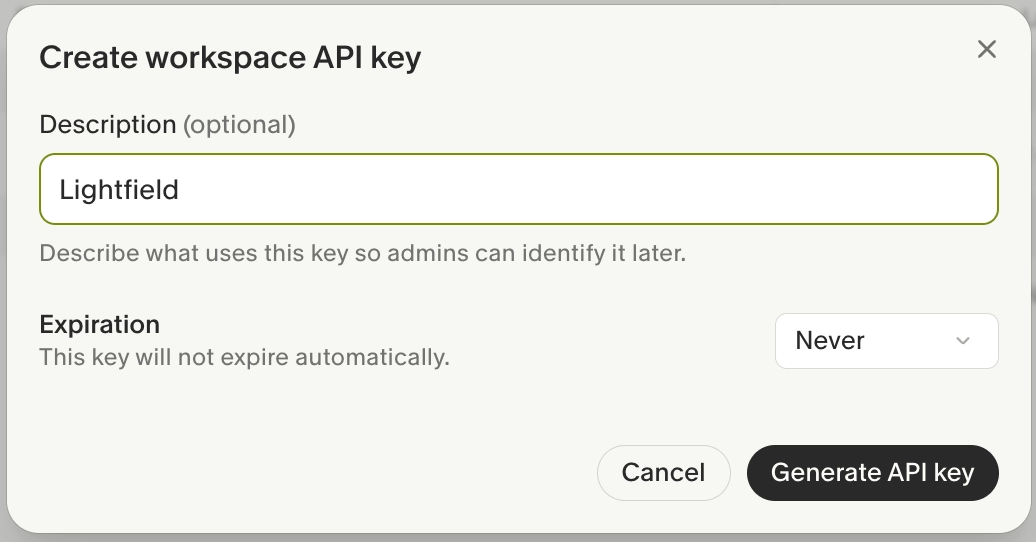
-
In Lightfield, go to Settings → Integrations, find Granola, and click Connect.
-
Paste the key into the Granola workspace API key field.
-
Choose a back sync range. This sets how far back Lightfield imports Granola transcripts and notes. The default is 1 month.
-
Click Confirm. Granola shows as Connected.
The workspace integration syncs all public transcripts with their enhanced notes. Manual notes (the notes people type during a meeting) are not included at the workspace level.
All members - Connect your personal Granola account
Section titled “All members - Connect your personal Granola account”Each user does this for themselves. Connect your personal account if you want your private transcripts or your manual notes in Lightfield.
-
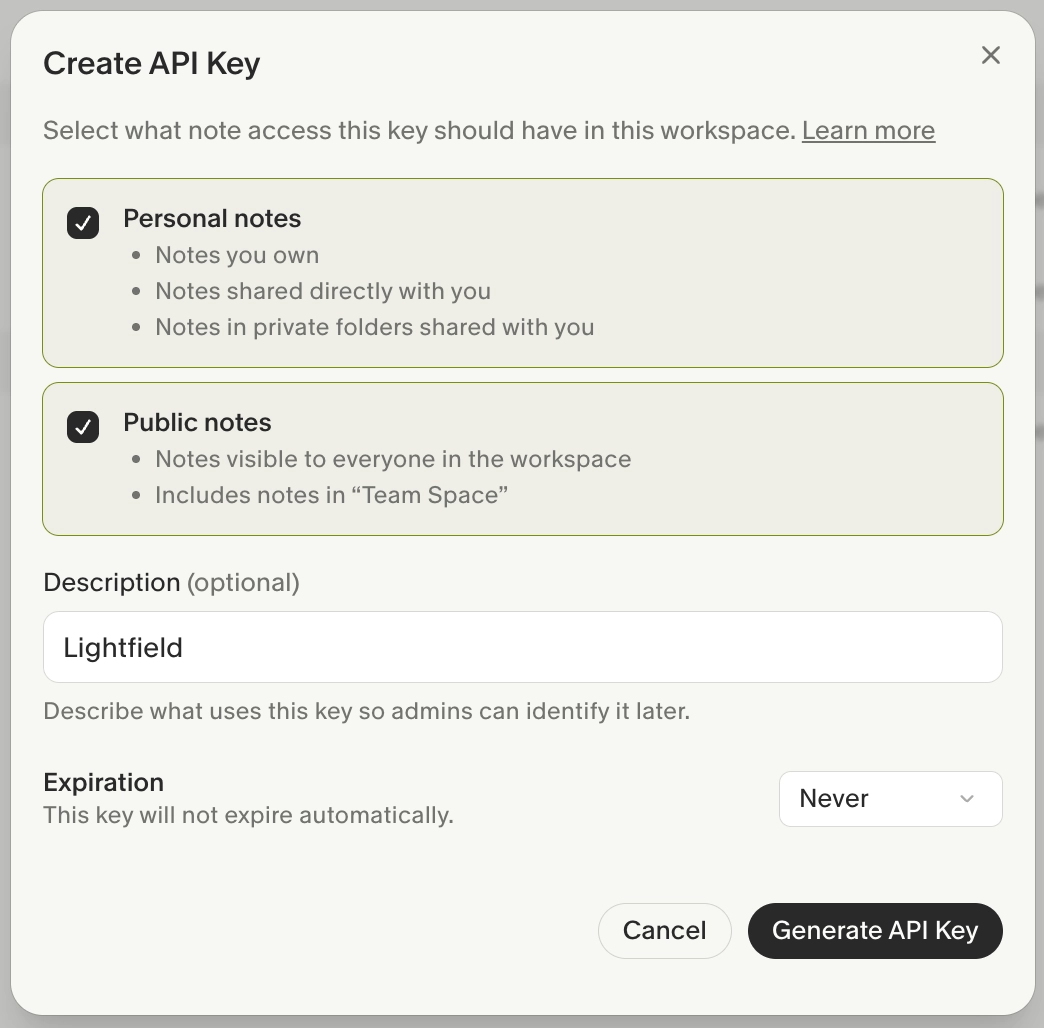
In Granola, go to Settings → Connectors → Personal API keys and create a new key.
- Choose which notes the key can access. To sync private transcripts, make sure the key includes private notes.
- Set the expiration to Never.
- Copy the key (it starts with
grn_).
-
In Lightfield, go to Settings → External apps, find Granola, and click Connect.
-
Paste the key into the Granola personal API key field.
-
Choose a back sync range.
-
Turn on Include manual notes if you also want the notes you typed during your meetings synced. This is off by default.
-
Click Confirm. Granola shows as Connected.
What syncs from your personal account depends on the access you gave your API key in Granola: public transcripts, private transcripts, or both.
How Granola content shows up in Lightfield
Section titled “How Granola content shows up in Lightfield”Matching transcripts to meetings
Section titled “Matching transcripts to meetings”Lightfield matches each Granola transcript to an existing Lightfield meeting using the meeting’s calendar event ID. If the meeting doesn’t exist in Lightfield, the transcript isn’t imported. Lightfield doesn’t create new meetings from Granola.
What you’ll see on the meeting page
Section titled “What you’ll see on the meeting page”For each matched meeting, Lightfield adds:
- Transcript: if the transcript source is not the native recorder, it is noted as Source in the header of the meeting page.
- Enhanced notes: Granola’s AI-generated notes, added as a note on the meeting.
- Manual notes: the notes you typed in Granola, added as a separate note. These sync only from a personal connection with Include manual notes turned on.
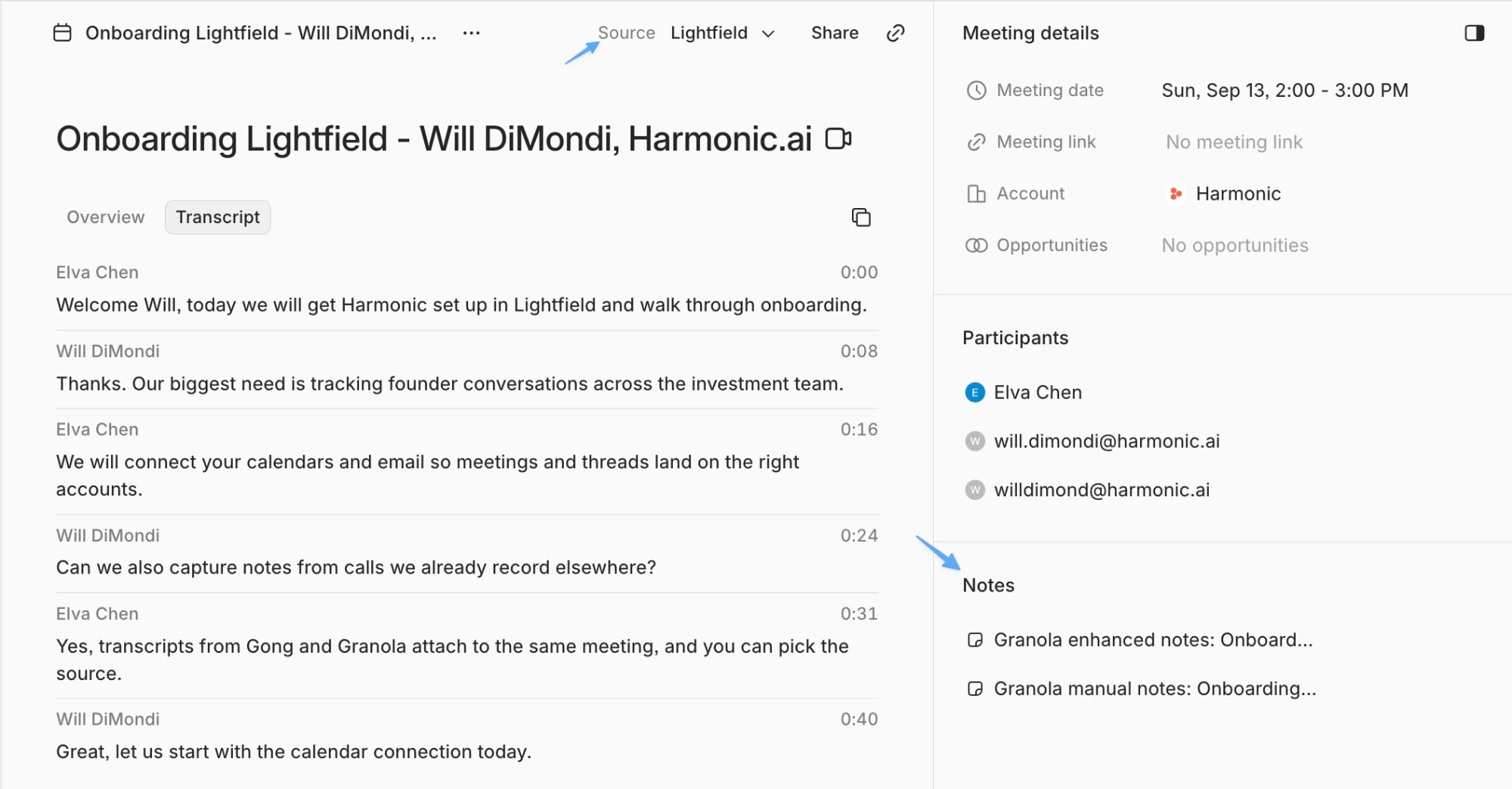
Notes are copied once, when the transcript is matched. Edits you make in Granola after that aren’t synced to Lightfield.
When a meeting has more than one transcript
Section titled “When a meeting has more than one transcript”A meeting can have transcripts from several sources, such as the Lightfield recorder, Gong, and Granola. Lightfield picks the native transcript as the primary. To change it, click the Source dropdown in the header, then click Use Granola in the transcript preview banner. The primary transcript is the one the agent uses by default.
To learn more, see Managing multiple recorders and transcripts.
Visibility
Section titled “Visibility”Synced transcripts and notes inherit the Lightfield meeting’s visibility. Anyone with access to the meeting in Lightfield can view its Granola transcripts and notes, including transcripts that were private in Granola. Keep this in mind before syncing private transcripts or manual notes.
I connected my personal Granola account in External apps. Why can’t I see my transcript in Lightfield?
- Your API key’s access. Granola transcripts are private by default. If the transcript is private, your personal API key must include private notes.
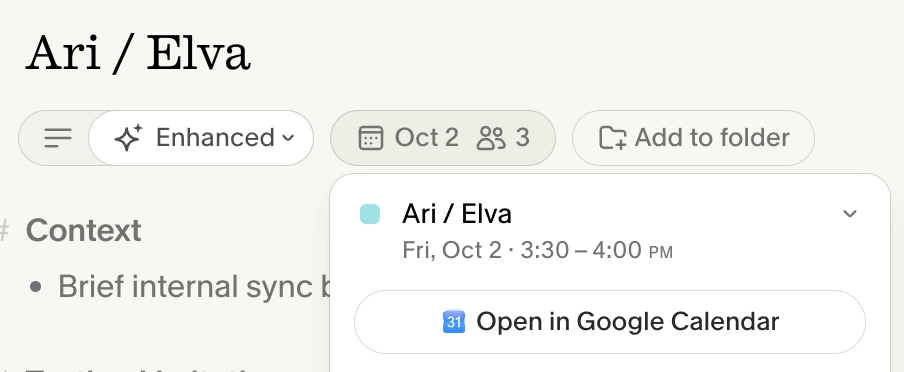
- The note is linked to a calendar event. Confirm the note in Granola is linked to a calendar event.
- The meeting exists in Lightfield. Lightfield only imports a transcript when it can match it to an existing Lightfield meeting. If the meeting isn’t in Lightfield, the transcript can’t be imported.
Do we need the workspace integration before I can connect my personal account?
No. Unlike Slack, the workspace integration and personal connections are independent. You can set up either one or both.
I added private notes access to my API key. Why don’t I see my older private transcripts?
Changes to your key’s access aren’t applied retroactively. Lightfield syncs private notes from the moment you made the change, but not private notes from before it.
Can I manually link a transcript to a meeting?
No. Transcripts are matched to meetings automatically. You can manually upload transcripts instead.
Why aren’t my manual notes syncing?
Manual notes only sync from a personal connection. Go to Settings → External apps, open your Granola connection settings, and make sure Include manual notes is on. The workspace integration never syncs manual notes.
I edited my notes in Granola. Why didn’t Lightfield update?
Lightfield copies Granola notes once, when it matches the transcript to a meeting. Later edits in Granola aren’t synced.
Granola stopped syncing. What happened?
The API key most likely expired or was revoked. Lightfield shows a reconnect notice when this happens. Create a new key in Granola with the expiration set to Never, then connect again in Lightfield.
We use both the workspace integration and personal connections. Will meetings get duplicate transcripts?
No. Lightfield keeps only one version from Granola. If there are multiple Granola transcripts for a single meeting, Lightfield keeps the latest version.
Manage or remove the integration
Section titled “Manage or remove the integration”- Disconnect your account: in Lightfield, go to Settings → External apps and disconnect Granola.
- Disconnect the workspace: an admin can remove the workspace connection in Settings → Integrations.
- Revoke the key: delete the API key in Granola under Settings → Connectors. Lightfield stops syncing right away.