
Slack
Sync Slack channels to Lightfield records, chat with the Lightfield agent, look up and update records, and receive scheduled digests in Slack.
Getting started
Section titled “Getting started”Setting up Slack integration happens in two steps inside Lightfield: first your workspace connects Slack, then each user connects their own account.
Step 1 - Connect Slack for your workspace (admin)
Section titled “Step 1 - Connect Slack for your workspace (admin)”This is a one-time setup done by a workspace admin.
- In Lightfield, go to Settings → Integrations and find Slack.
- Confirm whether you want to back sync all channel histories for your workspace. This setting is on by default. If you turn it off, no channel history will be imported, and syncing will start from the moment a channel is connected to an object in Lightfield.
- Click Connect and approve the requested permissions in Slack.
- If the app is pending approval in Slack, a Slack workspace admin needs to approve the Lightfield app.
- When you return to Lightfield, Slack shows as Connected.
If you’ve previously set up a Slack connection, you’ll be prompted to refresh permissions to use the latest features.
Until an admin completes this step, individual users can’t connect their own accounts.
Step 2 - Connect your personal account
Section titled “Step 2 - Connect your personal account”Each user does this for themselves.
- In Lightfield, go to Settings → External apps, find the Slack card, and click Connect.
- Approve in Slack. You must connect to the same Slack workspace your organization connected. This maps your Slack member ID to your Lightfield user, so the agent knows who you are and only shows you data you have access to.
- Slack shows as Connected in Lightfield.
After you connect your personal account:
- The Lightfield app appears in Slack under Apps in your sidebar.
- You’ll receive a welcome message from the bot confirming you’re set up.
Capabilities
Section titled “Capabilities”The Slack integration has three parts: chat with the agent, digests and notifications, and channel sync.
Chat with the Lightfield agent in Slack
Section titled “Chat with the Lightfield agent in Slack”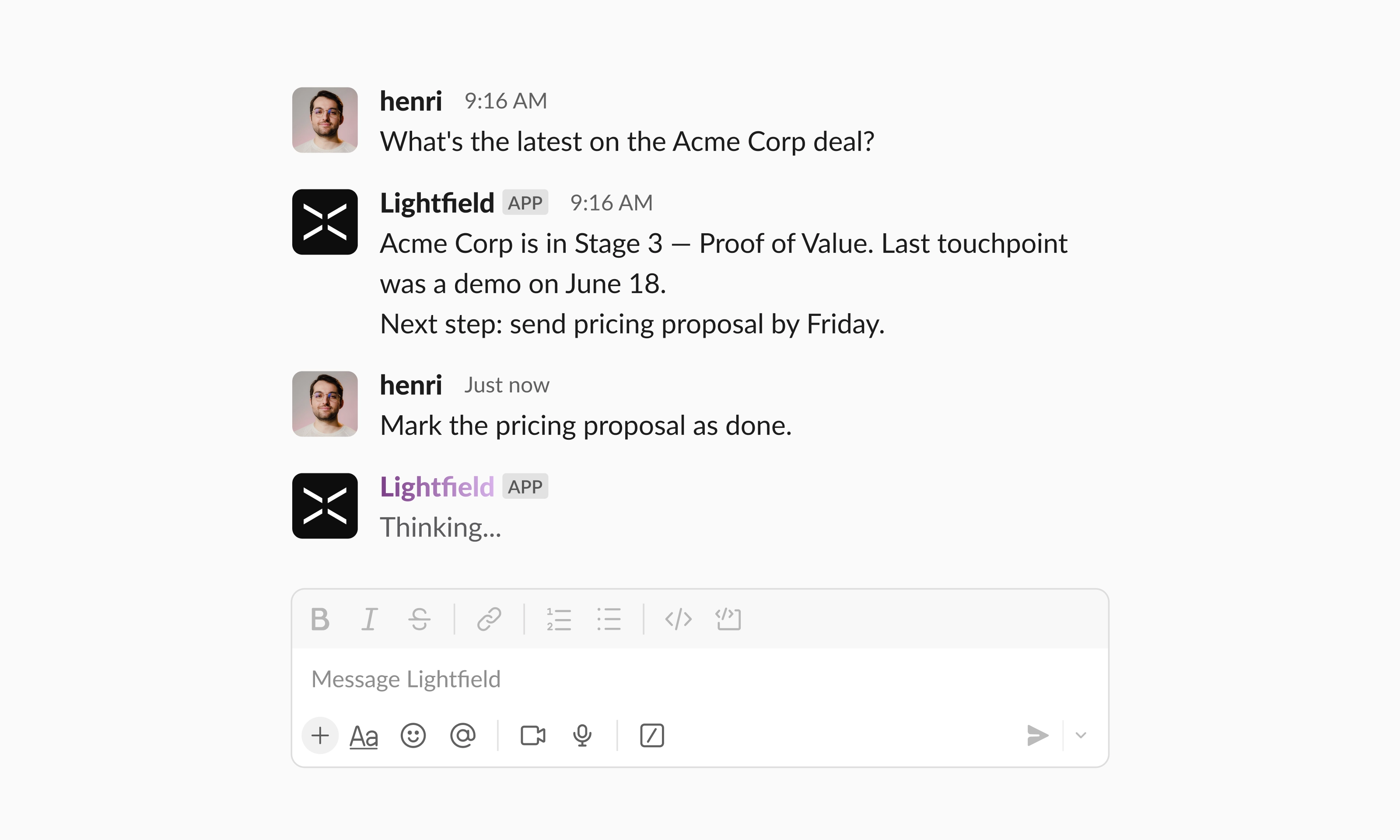
The agent in Slack is meant for quick actions and questions.
- Look up records: “What’s the latest on the Acme renewal?”, “Show me open opportunities closing this month.”
- Update records: “Mark the Acme deal as Closed Won.”, “Set the next step on Nimbus to ‘send proposal’.”
- Ask questions across your CRM: “Which accounts haven’t been touched in 30 days?”, “Summarize my last meeting with Globex.”
Receive digests & notifications
Section titled “Receive digests & notifications”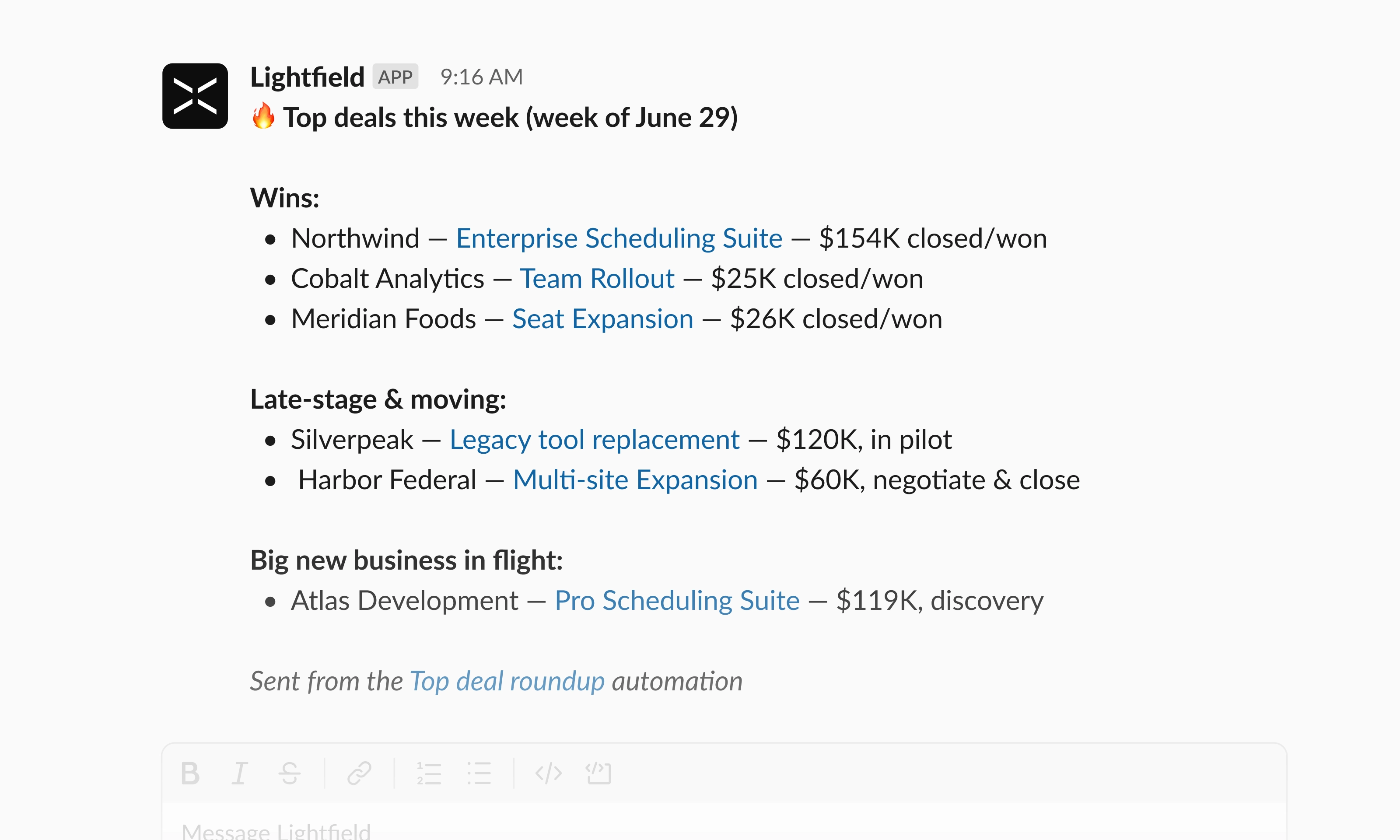
Set up an automation in Lightfield to send its output to Slack, and the agent delivers it as a direct message. For example: “every morning, tell me who to reach out to today,” or “every Monday, review my pipeline.”
Configure notification types and frequency in Lightfield under Settings → Notifications.
Sync Slack channels to Lightfield
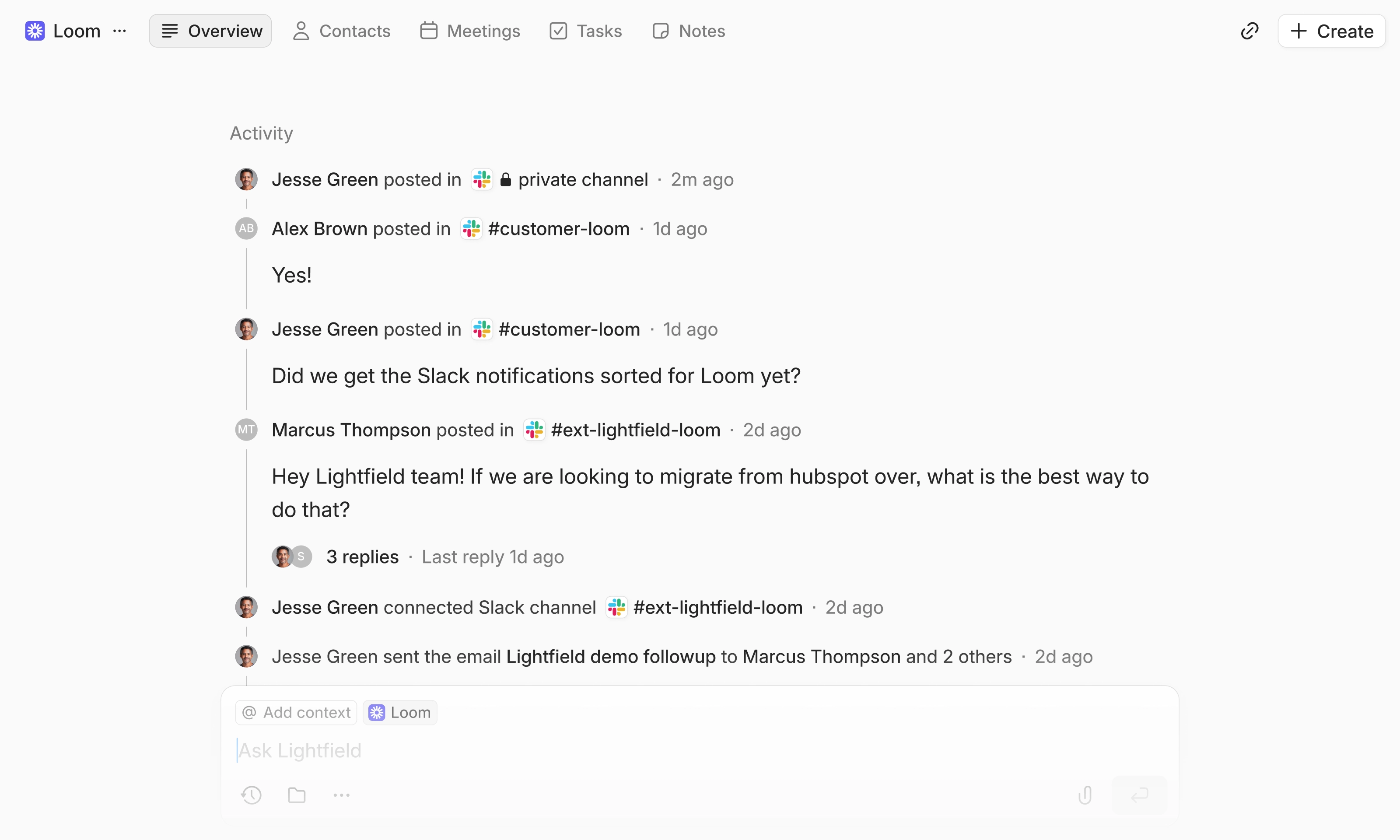
Section titled “Sync Slack channels to Lightfield”Connect Slack channels to accounts or opportunities to bring their messages into Lightfield.
Connect a channel to your records
Section titled “Connect a channel to your records”Connect an existing Slack channel to an account, an opportunity, or a custom object. Once connected, Lightfield syncs all messages into the record’s Activity log.
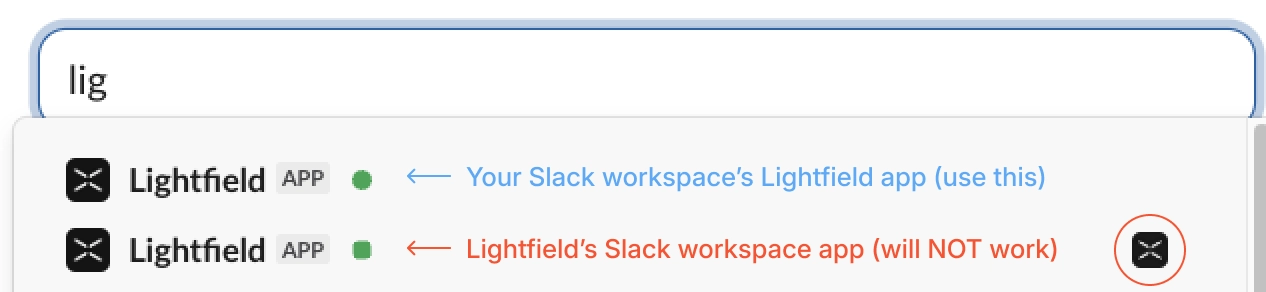
To connect a private channel, first invite the @Lightfield bot to that channel in Slack. These channels only appear in Lightfield after the bot has been added.
If you see two Lightfield apps, add the one marked with a green circle (see screenshot below). The one with a green square and the Lightfield logo on the right belongs to Lightfield’s own Slack workspace and appears because of a shared external channel with your workspace.
Reactions, images, and attachments are not shown in the Activity log yet.
Sync existing contacts
Section titled “Sync existing contacts”Lightfield will automatically map Slack members to your existing contacts by matching email addresses. You can edit contact mapping in the Contact page. Slack messages from the contact and to the contact (in @ mention) are shown on their Activity log. Lightfield does not create new contacts from channel connections yet. One Slack member can only be mapped to a single contact, but a contact can have multiple Slack IDs.
Agentic use of Slack context
Section titled “Agentic use of Slack context”Beyond showing messages in the activity log, Lightfield uses connected Slack channels to keep records current and answer questions in context.
- Summaries: Lightfield keeps your account and opportunity summaries updated with context from the Slack channels connected.
- Suggested record updates: The agent can propose changes to records based on what’s happening in Slack.
- Ask Slack-related questions: When you’re working in the context of a specific account or opportunity, you can ask the agent about Slack activity for that record. Lightfield might not be able to answer questions around Slack channels independent of account or opportunity activities.
Privacy for private channels
Section titled “Privacy for private channels”For a private channel, message content is only visible to Lightfield members who are also members of that channel; everyone else sees metadata only. Public-channel messages are visible to your Lightfield workspace.
Messages from private Slack channels are never used for account summaries, suggested record updates, or agent answers, even if those channels are connected to a record. Private-channel content remains available in the activity log for members who can see it, but it stays out of the agent’s reasoning.
Disconnect & reassign
Section titled “Disconnect & reassign”Detaching a channel from a record removes those messages from that record’s activity log. If a channel is no longer connected to any record, Lightfield stops syncing it, though existing messages remain in the system in case you reconnect later.
Can I mention @Lightfield in a channel?
Not yet. For now, chat with the agent directly in the Apps section of your Slack sidebar.
The Connect button on External apps is greyed out. Why?
Your workspace admin hasn’t connected Slack yet. Ask them to connect it in Settings → Integrations first.
We connected Slack a while ago - do we need to do anything?
If you connected before, an admin needs to click Update permission on the Slack integration in Settings → Integrations. This grants the extra permissions the agent needs without disconnecting your existing setup.
Why can’t I find my private channels when connecting Slack channels?
Slack only exposes private channels to apps that have been invited. Open the channel in Slack, invite @Lightfield, then try connecting again in Lightfield.
Why can’t I see the messages in a private channel that I’m a part of?
This usually means your Slack account isn’t connected yet. Channel visibility is based on your individual Slack identity. If you haven’t connected your account under Settings → External apps, Lightfield doesn’t know who you are in Slack and can’t determine which channels you’re a member of, so those messages appear as metadata only rather than full content.
What if I want to turn off back sync after the initial connection?
Setting changes take effect immediately and are not applied retroactively. Turning off back sync won’t delete or alter any content that’s already been synced. It only affects channels you connect going forward, which will start syncing from the moment of connection instead of pulling in prior history.
I use Lightfield via API and MCP. Is Slack context available there too?
Yes. Slack context synced to Lightfield is available through the API and MCP, the same as other CRM data.
How much does Slack integration cost?
Slack integration is included with your Lightfield subscription. There’s no separate charge to use it. Channel sync is included in the Pro plan. See lightfield.app/pricing for Lightfield plan details.
AI disclaimer
Section titled “AI disclaimer”Lightfield uses large language models to understand your requests and generate responses, and the agent can make mistakes. Summaries, answers, and suggested record updates may be inaccurate or incomplete. Please review the agent’s output before relying on it, and double-check any record changes it makes. Lightfield does not use your Slack data to train large language models.
Slack plan requirements
Section titled “Slack plan requirements”The Lightfield agent runs inside Slack’s AI app container, which requires a paid Slack plan. Notifications and digests from the Lightfield app work on all Slack plans; the in-container agent experience is available where Slack’s AI app features are enabled.
Privacy and data
Section titled “Privacy and data”Lightfield only surfaces information you already have access to in Slack and in Lightfield. It never exposes private channel content, messages, or record data to people who wouldn’t otherwise see them. All traffic is encrypted in transit (TLS 1.2+), OAuth tokens are stored securely and invalidated when the app is removed, and incoming requests from Slack are verified using Slack’s signing secret.
Our privacy policy covers what data we collect, how it’s used, how long it’s retained, and how to access, transfer, or delete it:
- Privacy policy: lightfield.app/privacy
- Data requests / questions: support@lightfield.app
Manage or remove the app
Section titled “Manage or remove the app”- Disconnect your account: in Lightfield, go to Settings → External apps and disconnect Slack.
- Disconnect the workspace: an admin can remove the workspace-level connection in Settings → Integrations.
- Remove from your workspace: a Slack admin can remove the app from Slack → Settings & administration → Manage apps. Removing the app revokes and invalidates its tokens.
Support
Section titled “Support”We respond within two business days.
- Email: support@lightfield.app
- Help center: support.lightfield.app
- Docs: docs.lightfield.app
- Status: status.lightfield.app