
Gong
Gong integration brings Gong recordings and transcripts into your existing Lightfield meetings.
Getting started
Section titled “Getting started”Gong connects at the workspace level. A workspace admin does this once, and then Gong recordings and transcripts appear on your existing Lightfield meetings.
Connect Gong for your workspace (admin)
Section titled “Connect Gong for your workspace (admin)”This is a one-time setup done by a workspace admin.
- In Lightfield, go to Settings → Integrations and find Gong.
- Click Connect.
- Approve the requested permissions in Gong.
- Choose the workspace to sync from. Only recordings and transcripts from that workspace will be available in Lightfield.
- Choose a back sync range. You can choose to sync transcripts and recordings from up to two years ago.
- When you return to Lightfield, Gong shows as Connected.
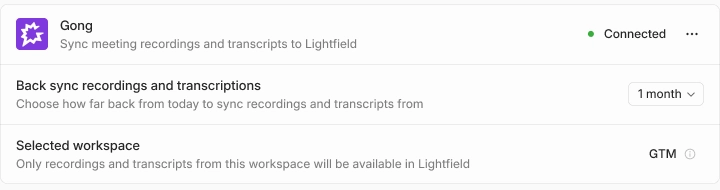
After Gong is connected, you can change the back sync range or confirm the selected workspace on the same Integrations card. To change workspace, disconnect and reconnect Gong.
View Gong recordings and transcripts
Section titled “View Gong recordings and transcripts”Once Gong is connected, Lightfield matches Gong recordings to your existing meetings. Shortly after the meeting ends, recording and transcripts from Gong should appear on the meeting page.
Visibility of Gong recordings and transcripts inherits the meeting’s visibility. Anyone who can see the meeting can see the Gong recording and transcript attached to it.
If you have multiple transcripts for a single meeting, by default, Lightfield will generate meeting summaries and suggested tasks based on the Lightfield native recorder. You can set a different transcript (for example, Gong’s) to be the primary.
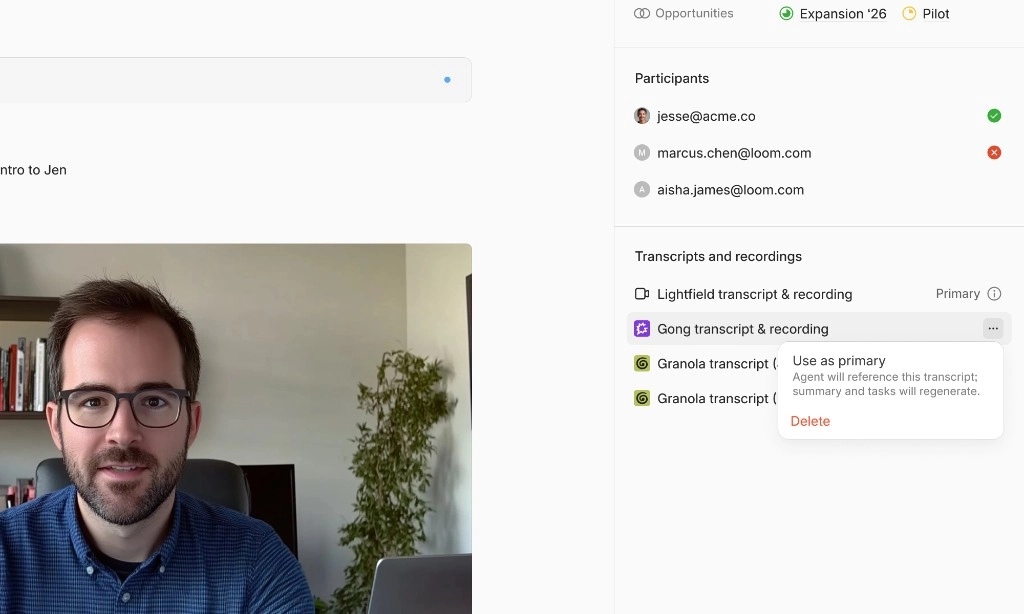
You can turn off Lightfield meeting recording in Settings → Integrations for yourself, or if you’re an admin, in Settings → Meetings for the entire workspace.
Agentic use of Gong context
Section titled “Agentic use of Gong context”Beyond showing recordings on the meeting page, Lightfield uses the primary transcript to keep records current and answer questions in context.
- Summaries: Lightfield can keep meeting and related record summaries updated from the primary transcript.
- Ask meeting-related questions: When you’re working in the context of a meeting, account, or opportunity, you can ask the agent about what was discussed. The agent uses the primary transcript.
Privacy
Section titled “Privacy”Gong recordings and transcripts inherit the meeting privacy model. Lightfield only surfaces them to people who already have access to that meeting.
Why don’t I see a Gong recording on a meeting I know was recorded?
Gong recordings only attach to existing Lightfield meetings. Confirm the meeting exists in Lightfield and that an admin has connected Gong in Settings → Integrations. Lightfield also only back syncs within the range chosen at connection time.
What if I want to change the back sync range after connecting?
Setting changes take effect immediately and are not applied retroactively. Changing the range won’t remove recordings that are already attached. It only affects what Lightfield imports going forward.
How do I change the Gong workspace?
Disconnect Gong and reconnect, then choose the workspace you want. To change workspace, you need to reconnect Gong manually.
I use Lightfield via API and MCP. Is Gong context available there too?
When a Gong transcript is attached to a meeting, it is available through the existing meeting transcript APIs the same way as other meeting transcripts.
Manage or remove the integration
Section titled “Manage or remove the integration”An admin can disconnect Gong in Settings → Integrations. Removing the workspace connection stops new Gong recordings from syncing.